
8. More hardware choices
Storage
Let’s look at one of the most fundamental components of any NAS: storage. You need it—but how much do you actually need?
The answer depends entirely on your use case. Some builders will tell you to install as many drives as you can afford, while others recommend starting small and expanding later. Both approaches are valid. What matters most is understanding your current storage needs and how much you expect them to grow.
If you know you’ll be using around 4 TB, it’s smart to buy a little more—perhaps 6–8 TB—so you have room to grow. However, if you plan on using RAID or ZFS with redundancy, your usable space decreases, meaning you’ll want to start with larger total capacity.
My Example (and Why I Changed My Plan)
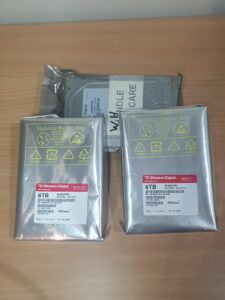
I originally purchased 3 × 6 TB WD drives with the intention of creating a RAIDZ1 pool. In that setup:
- 2 drives would give me 12 TB of usable storage
- 1 drive would be used for redundancy (one drive can fail)
But then I learned something I hadn’t considered:
During a resilver (data rebuild), if a second drive fails—and it can happen—you will lose the entire pool. This risk increases with:
- Larger drives
- Aging drives
- Long rebuild times
So, I changed to 4 × 6 TB drives and built a RAIDZ2 pool. Now:
- I still have 12 TB of usable space
- But 2 drives can fail without losing any data
- My chances of catastrophic failure during a rebuild are dramatically lower
I can also add another 6 TB drive later to expand the pool to 18 TB, which is plenty for my current needs.
HDD or SSD?
Another major decision is whether to use HDDs or SSDs:
- HDDs (Hard Disk Drives)
- Much cheaper per terabyte
- Excellent for media, bulk storage, and backups
- Slower, mechanical, produce heat and noise
- SSDs (Solid State Drives)
- No moving parts, silent, faster
- More expensive per terabyte
- Better for VMs, apps, and high-speed caching
- Also great for low-power builds
Most DIY NAS users choose HDDs for the main storage pool and optionally add:
- SSD boot drives, or
- SSD cache drives (L2ARC, SLOG, etc.), depending on the software
Storage Requirements Depend on the OS
Different NAS operating systems handle storage in different ways:
- TrueNAS Scale / Core
- Prefers full pools built at once
- ZFS expands best when adding drives in groups (vdevs)
- So if you want RAIDZ2, you really need all four drives upfront
- Unraid
- Far more flexible
- You can add any size drive at any time
- Optimal for slow expansion and mixed-capacity drives
Since I’m using TrueNAS Scale, I needed all 4 drives at the start to create a proper RAIDZ2 pool. Someone choosing Unraid could start with one or two drives and scale up gradually without issue.
Operating System (OS) storage
OS storage is another important consideration when building a NAS. Ideally, you want something fast, reliable, and separate from your main data storage. NVMe M.2 SSDs are the best option if your motherboard supports them — they’re compact, extremely fast, generate low heat, and are perfect for operating system duties.
In my setup, I’m using two NVMe M.2 drives in a RAID1 mirror for the NAS operating system. This means that if one drive fails, the other keeps everything running without interruption. Losing the OS isn’t usually catastrophic in a NAS (because the OS doesn’t store your data), but rebuilding and reconfiguring everything from scratch can take a lot of time — especially with services, containers, plugins, permissions, and networking settings.
Using a mirrored pair of SSDs gives me peace of mind and helps avoid unnecessary downtime and headaches. Even though you can run a NAS on a single SSD without issues, RAID1 is cheap insurance and is generally recommended for long-term reliability.
I only need 256GB so I bought a matching pair second hand, There is more storage than I need but a cheaper option.
Sata ports
The number of hard drives you plan to use will directly affect how many SATA ports your system needs. Finding a motherboard with enough ports can be difficult, especially if you’re aiming for smaller form factors like ITX or compact NAS-style boards. Try not to buy a board that only meets your current needs — if you expect to expand your storage later, choose something with extra capacity or you may find yourself upgrading sooner than planned.
Of course, there’s usually a workaround. You can add additional SATA ports or even NVMe M.2 slots through PCIe expansion cards. There are PCIe cards that offer multiple SATA ports, and others that let you run several NVMe drives. Some NVMe expansion cards even include onboard SATA controllers to give you a mix of both.
However, this flexibility comes with a warning: your system only has a limited amount of PCIe bandwidth. If you add too many devices, you can create a bottleneck where multiple high-speed drives are forced to share the same data lanes. This is similar to multiple roads merging into a single lane — traffic slows down because everything has to pass through a narrower path.
For a smooth, future-proof NAS build, plan your storage layout early and make sure your motherboard and PCIe lanes can comfortably support your intended number of drives without saturation.
PCIe
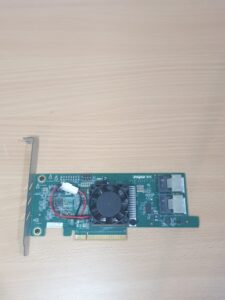
PCIe (Peripheral Component Interconnect Express) is completely optional in a NAS, but it can dramatically expand what your system is capable of. A PCIe slot allows you to install add-on cards that provide extra functionality, such as additional storage connectivity, faster networking, or hardware acceleration.
As mentioned earlier, one popular use for PCIe is adding more storage options. Even if your motherboard already has enough SATA ports, you may still want more flexibility, better performance, or enterprise-grade reliability.
In my case, the onboard SATA ports were technically sufficient, but they weren’t ideal for the type of setup I wanted to build — especially once we dive deeper into motherboard limitations later on. To solve this, I installed a mid-range, low-profile HBA (Host Bus Adapter) card running in IT mode.
What does that mean?
- An HBA in IT mode is a PCIe expansion card designed specifically for connecting storage drives (SATA or SAS).
- IT mode stands for Initiator Target mode, which bypasses hardware RAID features and exposes each drive directly to the operating system.
- This is exactly what you want when running ZFS or TrueNAS, because it ensures ZFS has full, direct access to each disk for monitoring, redundancy, and error correction.
The advantage is simple:
each drive gets its own direct high-speed data path, instead of sharing lanes or relying on weaker motherboard controllers. This improves performance, compatibility, and reliability — especially in multi-drive configurations or ZFS pools.
Another option is to add a PCIe Wi-Fi card, but in a NAS build this is generally not recommended. A NAS should ideally use wired Ethernet for faster, more reliable transfers, especially when dealing with large files, backups, or media streaming. Wi-Fi is typically only used when absolutely necessary or when the NAS is built for a very specific, low-bandwidth purpose.
One important thing to remember is that different motherboards have different PCIe slot sizes (x1, x4, x8, x16) and different PCIe lane speeds (Gen 2, Gen 3, Gen 4, etc.). These factors affect:
- What cards physically fit
- How much bandwidth they can use
- Whether they operate at full speed or are restricted by lane limitations
For example, installing an HBA that requires an x8 PCIe slot into an x4 slot will limit its speed. Similarly, using a PCIe Gen 3 card in a Gen 2 slot will reduce available bandwidth.
Making sure your PCIe slots match your intended upgrades will save you headaches later and ensure your NAS performs as expected.
That’s plenty to cover for now. In the next post, I’ll go through USB ports, Ethernet ports, display outputs, and audio, and explain which ones actually matter for a NAS build and why.
After that, we’ll move into the bigger hardware decisions such as motherboards, power supplies, cases/enclosures, and cooling — all of which play a major role in performance, noise, and long-term reliability.