
12. Assembly of the NAS – Pt 2
Now that the motherboard is installed, it’s time to add the remaining components.
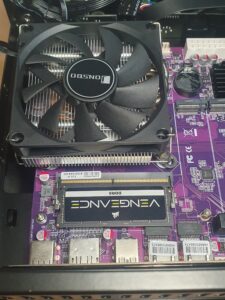
The Corsair Vengeance DDR5 RAM went in next. It was a tight fit, and I didn’t want to force it. If you look carefully at the image in the gallery below, you might notice the issue — the RAM wasn’t actually fully seated. I’ll explain what happened shortly.
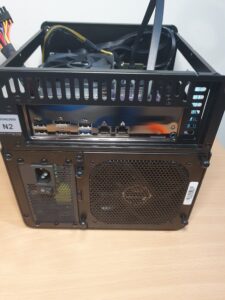
With that done, I moved on to installing the power supply (PSU). Following the Jonsbo N2 manual, I attached the PSU to the case bracket first and then slid the assembly into place. The fit was perfect, and the PSU side air intake lined up cleanly with the case ventilation.
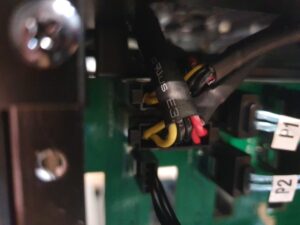
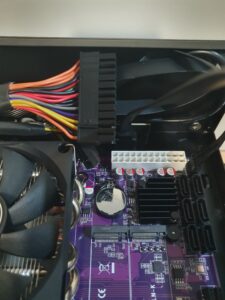
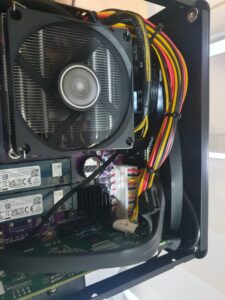
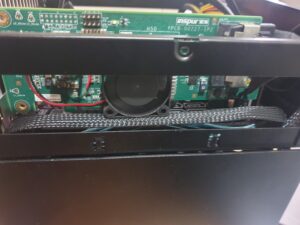
The power cables route up the side of the case and reach over toward the 24 pin ATX connector on the motherboard, with the 4 pin CPU power connector nearby. The SATA backplane power cables, however, sit extremely close to the rear case fan, tight enough that they had to be gently bent to fit. Once shaped, they hold their position without issue.
One problem:
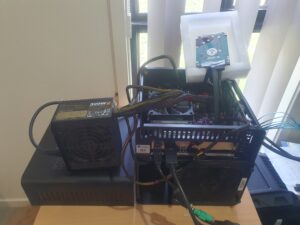
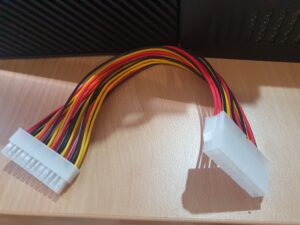
The 24 pin main power cable from the PSU was about 5 cm (2 inches) too short to reach the motherboard cleanly when the PSU was oriented the correct way (fan facing the case intake). I could have flipped the PSU so the cables exited from the top, which would have given more reach, but I didn’t want the PSU fan drawing air directly next to the rear exhaust fan. So for initial testing, I left the PSU outside the case temporarily and ordered a 24 pin ATX extension cable.
Before installing the rest, I performed a quick test boot using a spare 2.5″ HDD. The NAS didn’t boot at all — and this is where I discovered the issue visible in the earlier picture:
The DDR5 RAM was not fully seated.
DDR5 slots need more downward pressure than older generations, and both retaining clips must click firmly.
After reseating the RAM properly, the system booted straight into the BIOS.
This BIOS is huge, genuinely the most extensive interface I’ve ever seen on a consumer NAS class motherboard. To make life easier, I created a full Google Sheet documenting the default BIOS settings (exactly as they appear out of the box). This took a lot of work, so once I polish it up and sort out the website backend, I may offer it for a small donation to help support the site.
With RAM and BIOS sorted, I installed Proxmox and was extremely happy with performance.
Installing Storage
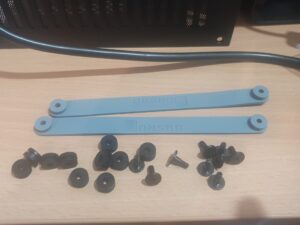
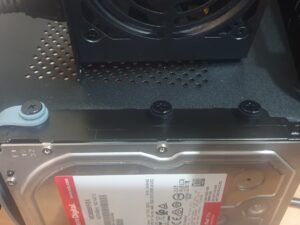
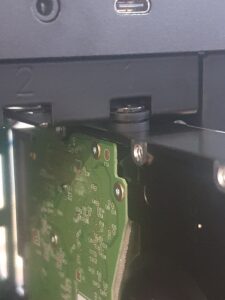
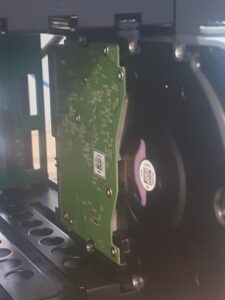
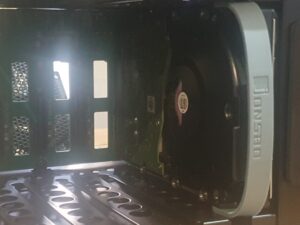
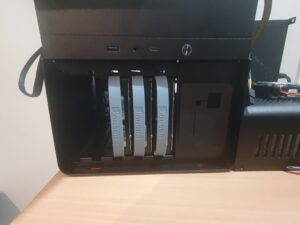
While the 24-pin extension cable was on the way, I installed the HDDs into the Jonsbo N2 drive bay system. The silicone straps and vibration-damping grommets screw into the drives and slide smoothly into the hot swap cage, a very clever design siilat to an older HAF ATX case I own.
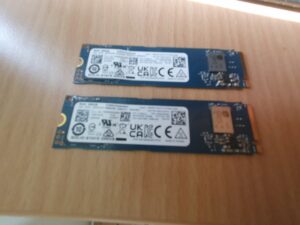
Next, I installed the two NVMe M.2 SSDs (for Proxmox / OS redundancy) and the LSI 9207-8i SAS2.1 HBA controller.
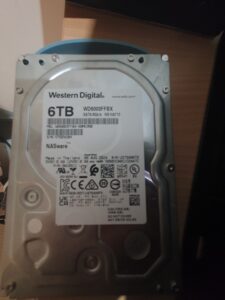
Proxmox booted perfectly, and all drives were detected except one. After troubleshooting, I confirmed the HDD was faulty, I returned it and received a refund. I then ordered two more WD Red 6TB drives so I could run 12 TB usable capacity in RAIDZ2, which gives two-disk redundancy.
Final Fitment
The 24-pin ATX power extension finally arrived, and once installed the PSU could be mounted in the correct orientation without cable strain. The remaining HDDs arrived shortly after and were installed without issue.
Now everything is ready to rock and roll!
The hardware is complete, Proxmox runs beautifully, and the full NAS build is coming together exactly as planned.
Coming up next is about configuring the BIOS and installing the software.