
19. Installing TrueNAS Scale Part 2
Time to continue on with the installation.
1, Start VM and install TrueNAS
Make sure you have selected your truenas VM on the left.
Towards the top right of the window is the Start button (next to the Shutdown button, greyed out), click on Start.
The installation is running and we can watch it in the >_Console
For some reason my console view had a glitch where the view was distorted and unreadable, this can be a common issue in Proxmox.
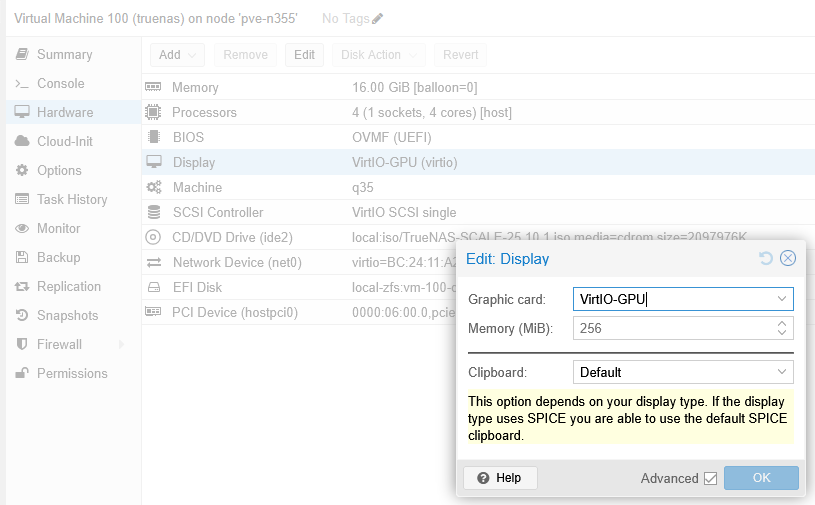
If you have this issue click on the Shutdown button for the truenas VM, Go to Hardware > Display and set Graphic card to VirtIO-GPU.
Press OK, Start and click back onto the Console, let it run.
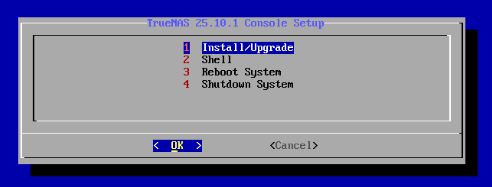
You should be looking at a menu 1 Install/Upgrade on the OK is highlighted as well, Press Enter on your keyboard.
Note: The navigate through the menus you need to use the up, down, left, right arrows on your keyboard and press Enter to select, and sometimes Esc to go back.
Net You are asked where you are installing to.
With the QEMU HARDDISK selected press the SPACE BAR on your keyboard to select it. You will see a * next to sda.
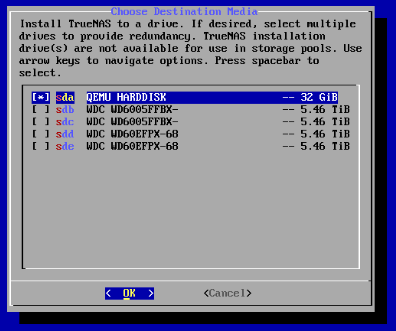
Press Enter.
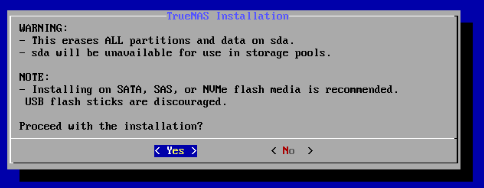
Next you get a warning that the sda will be wiped, this is normal do again just press Enter.
Next is a Web UI Authentication Method box. This is where you set your login password.
As shown your default username is truenas_admin and you will use this to login on the web browser.
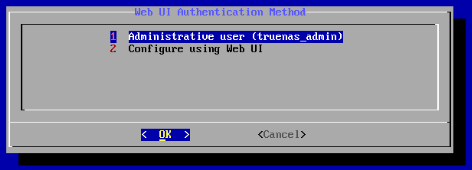
Press Enter on the 1 Administrative user.
Now enter your password, arrow down.
Enter the password again, arrow down.
Press Enter.
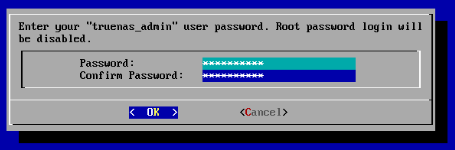
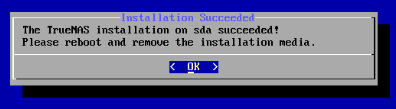
Just wait for the installation process to complete.
When it is ready you will see a dialog box. Just press Enter again.
2, Removing the boot HDD
So now we need to stop Proxmox from trying to run the ISO install after restart. We want TrueNAS Scale to boot, not the installer.
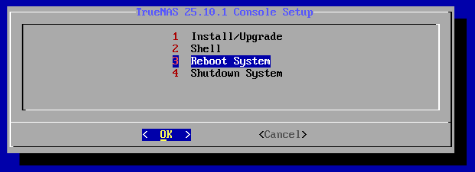
You may have had the installation boot again or had the opting to reboot or shutdown. You need to stop TrueNAS Scale from running while we configure it.
Select 4 Shutdown System and then OK and Enter to turn off TrueNAS Scale.
Once off navigate to Options > Boot Order, and then tick scsi0.
This needs to be in #1 slot, you can just left click and hold and drag it up to the top.
Note: If issues continue then untick net0 as well.
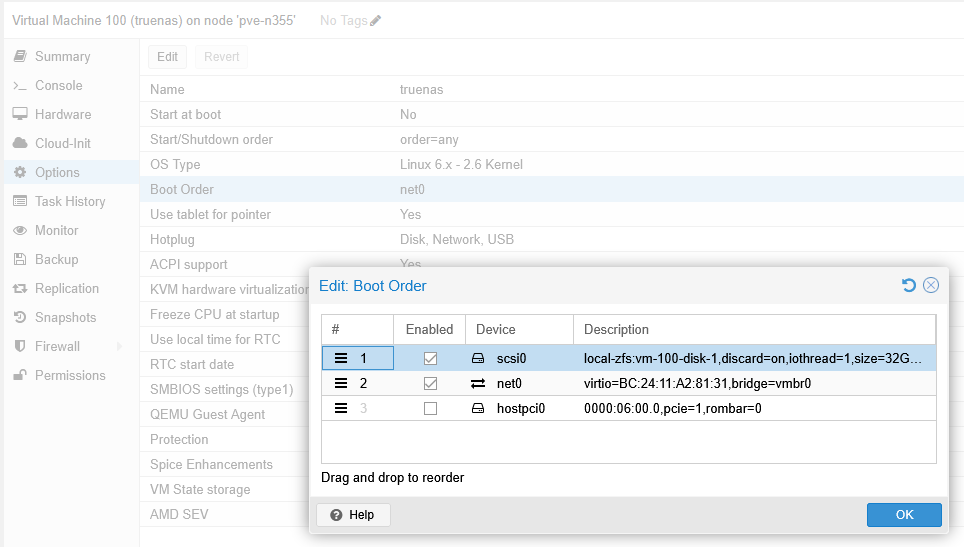
Click OK to complete this step.
Now to remove the installation media from booting.
Select Hardware > CD/DVD Drive, and up the to click Remove.
Now it is time to start it all back up again the Start button again.
This time you will startup screen when looking at the console.
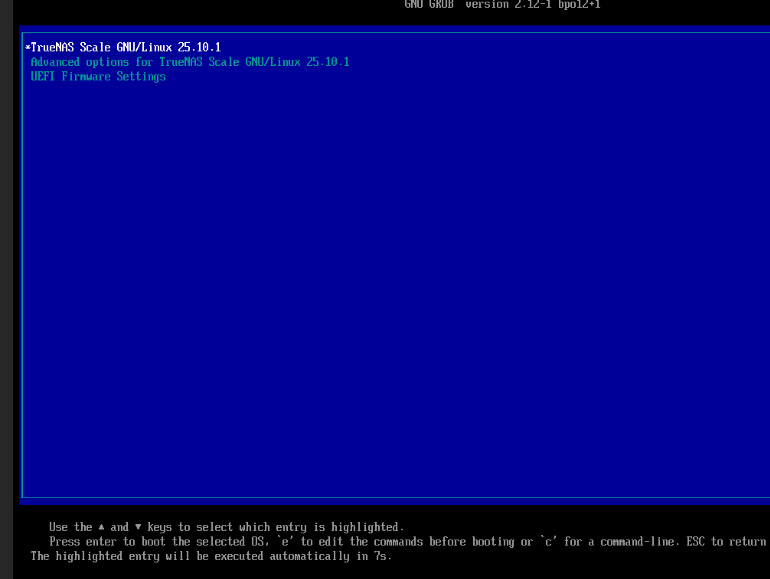
Let it run and you we be in the console screen similar to when you first installed Proxmox and needed to access the web browser.
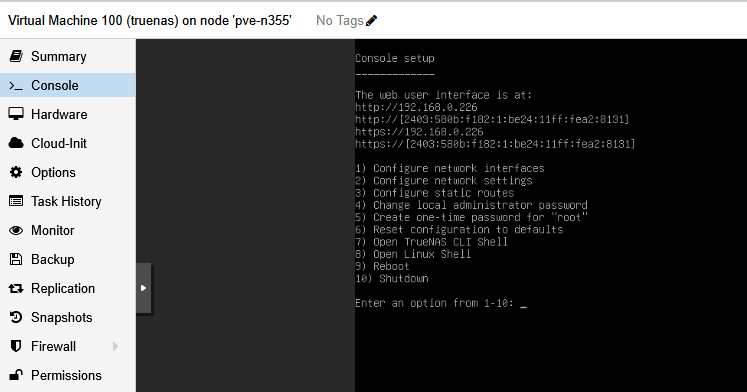
You will now see the IP addresses used to login to TrueNAS Scale.
I want to use the secure link https://192.168.0.226. So I enter that into my web browser and BAM!
You may get some security prompts link mine.
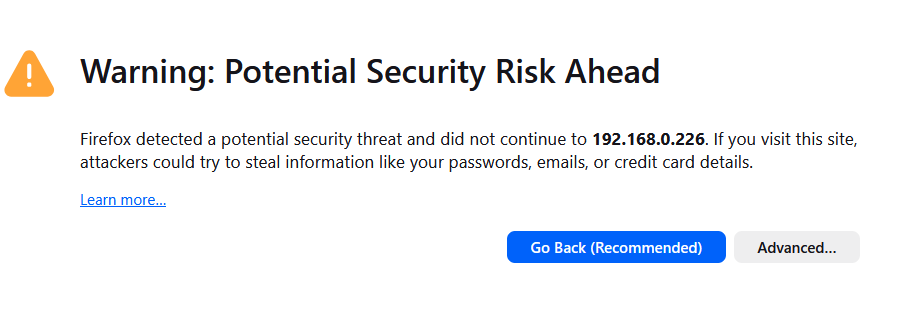
Click Advanced.
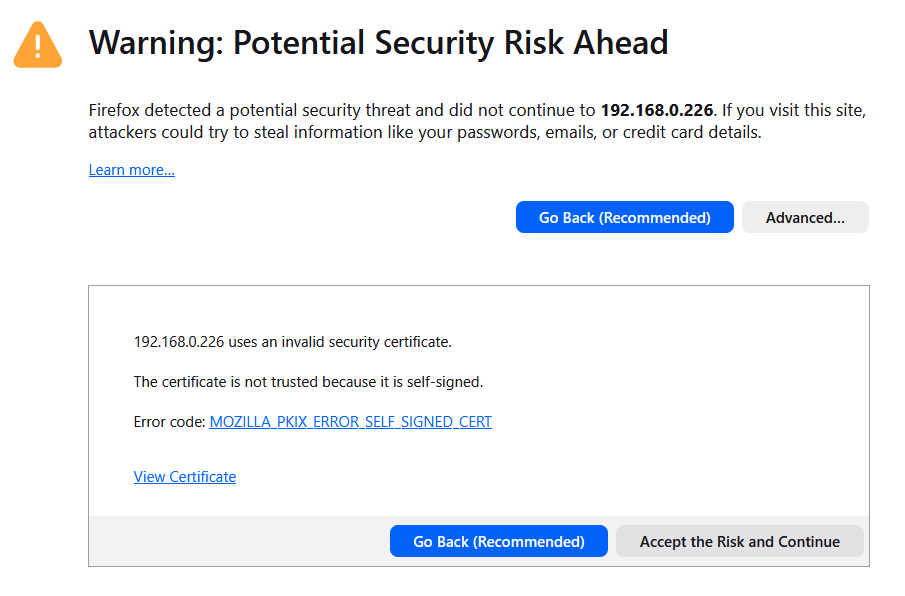
Click Accept the Risk and Continue.
TrueNAS Scale Login
Now you will be on the login page.
Enter the username truenas_admin
Enter your password.
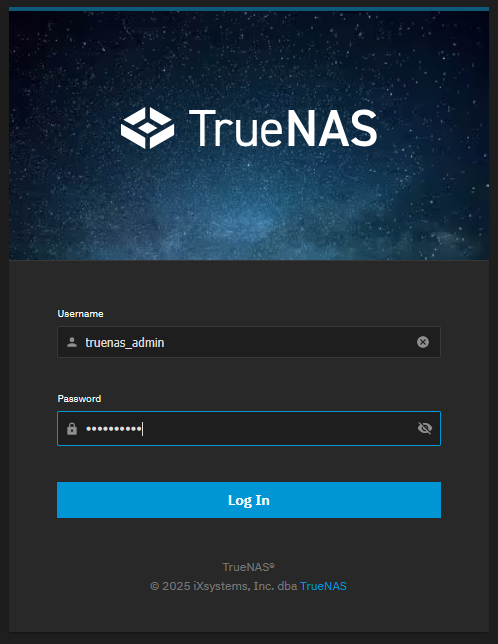
And then simply press Log In.
CONGRATULATIONS!
This has been a lot of work to get to this point and I will say it takes a massive amount of time to just document this.
But wait there is more, yes we need to setup our ZFS storage and more, as well as installing Nextcloud later.
Next post will go through all of this.