
23. Installing Nextcloud
Just like earlier when I added Jellyfin I have to go through a similar process to Install Nextcloud.
Again setting up permissions and shares. If for some reason I speed up this process and you start to get lost just look back to the earlier few posts to refine the process.
1 Adding additional Datasets
Navigate to Datasets > tank > nextcloud > Add Dataset.
I am adding two datasets to this location “data” and “db“.
Configure these settings for these two datasets only:
Name: data or db
Dataset Preset: Generic
Case sensitivity: Insensitive
Leave everything else default and click Save.
2 Set Permissions
Navigate to Datasets > tank > nextcloud > Permissions (to the right) > Edit.
User: apps
Group: apps
Advanced: Apply permissions recursively (ticked)
Click Set ACL (to the right)
Preset: POSIX Open
Apply permissions recursively (ticked)
Leave everything else default and click Save Access Control List.
Do the exact same for the datasets data and db.
Now to test the access for any errors.
Navigate to System > Shell and put in these three commands pressing Enter after each one.
touch /mnt/tank/nextcloud/data/testfile
ls -l /mnt/tank/nextcloud/data/testfile
rm /mnt/tank/nextcloud/data/testfile
Installing Nextcloud
First double check to make sure paths are ready buy running more commands.
sudo mkdir -p /mnt/tank/nextcloud/appdata
sudo chown -R 1000:1000 /mnt/tank/nextcloud/appdata
sudo mkdir -p /mnt/tank/nextcloud/data
sudo chown -R 1000:1000 /mnt/tank/nextcloud/data
sudo mkdir -p /mnt/tank/nextcloud/db
sudo chown -R 1000:1000 /mnt/tank/nextcloud/db
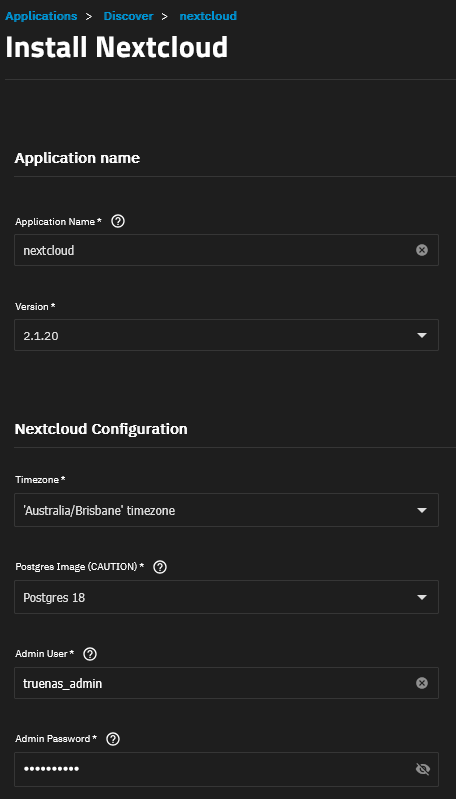
Navigate to Apps > Discover Apps and type in nextcloud in the search box and click on the Nextcloud app.
Click Install.
Name: nextcloud
Admin User / Password: leave or change.
Timezone: your timezone
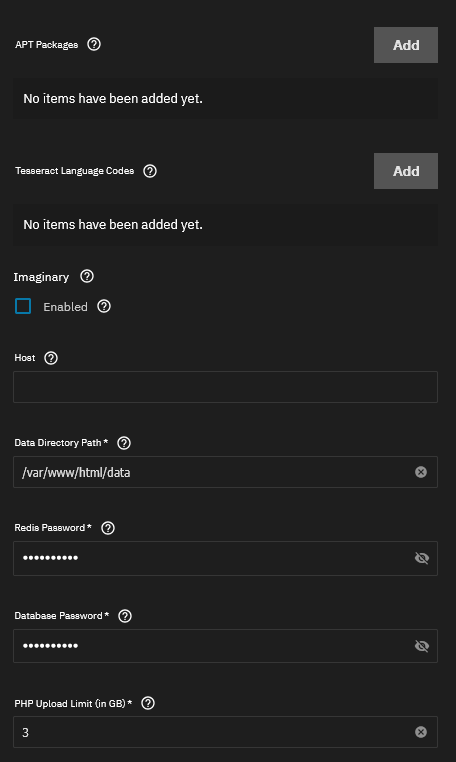
Redis / Database Password: enter or leave (I used my admin password)
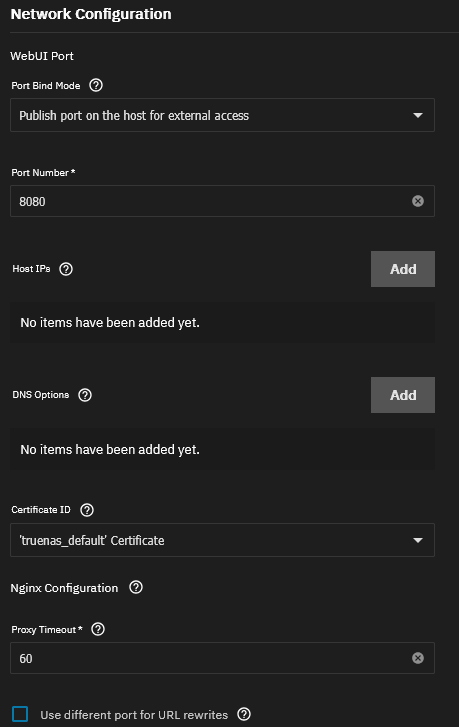
Port Bind Mode: Publish port on the host for external access
Port Number: 8080
Certificate Id: ‘truenas_default’ Certificate
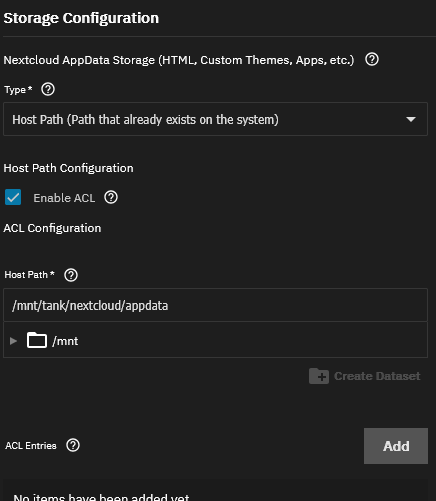
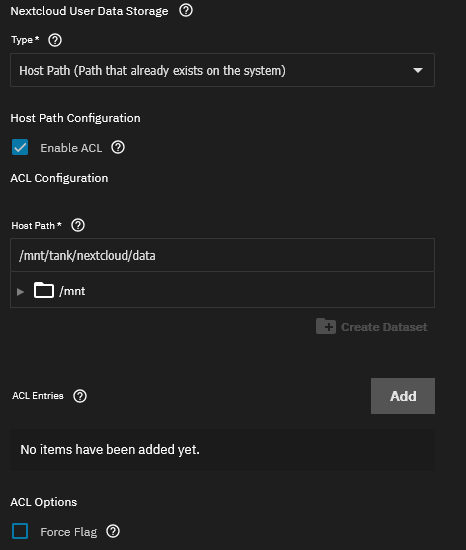
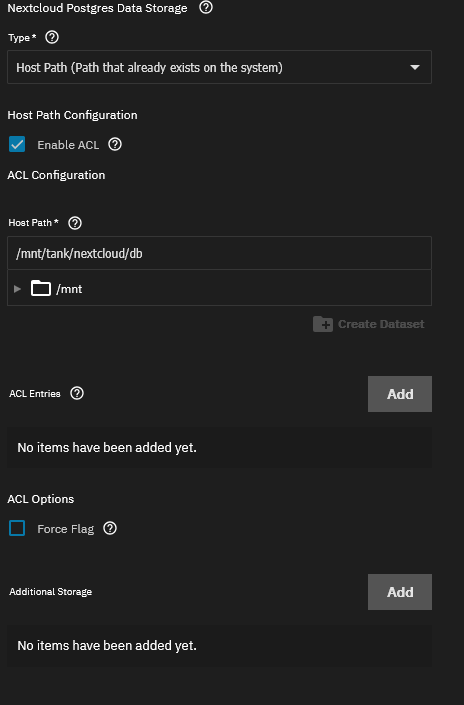
Note: Images all show Enable ACL ticked – MAKE SURE THIS IS UNTICKED.
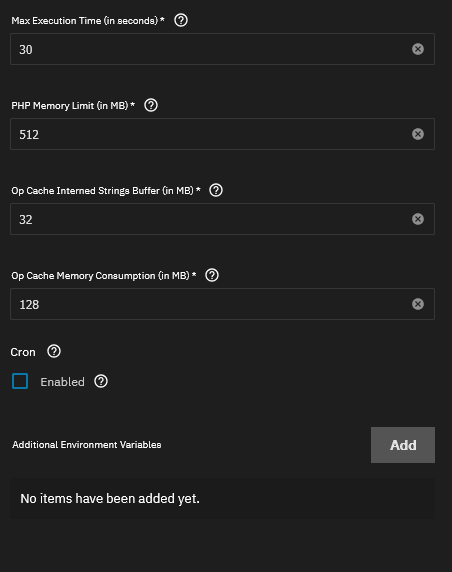
Setup as shown and leave all other fields as they are.
Storage Configuration:
– Nextcloud AppData Storage:
Type: Host Path (Path that already exists on the system)
Host Path: /mnt/tank/nextcloud/appdata
– Nextcloud User Data Storage:
Type: Host Path (Path that already exists on the system)
Host Path: /mnt/tank/nextcloud/data
– Nextcloud Postgres Data Storage:
Type: Host Path (Path that already exists on the system)
Host Path: /mnt/tank/nextcloud/db
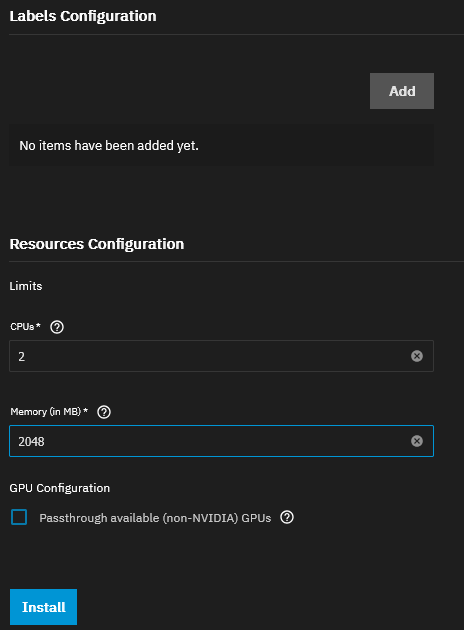
CPU: 2
RAM: 2048
Nextcloud should now be installed.
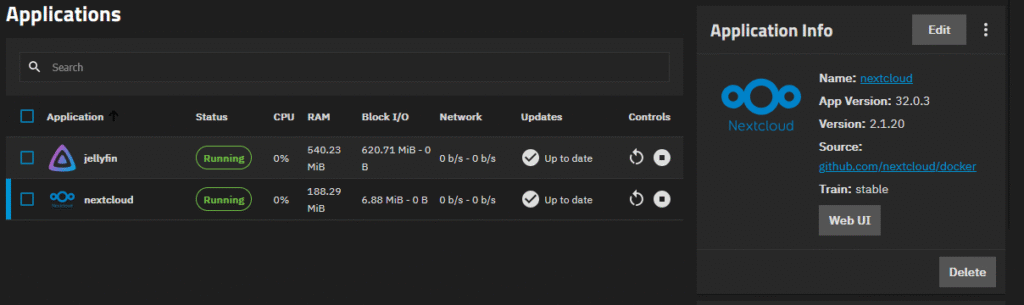
Click on the Web UI to open the web page.
It will say it is an untrusted site.
So you need to add the ip address into trusted domains via a nano on the config file.
My address is located at /mnt/tank/nextcloud/appdata/config/config.php but if you need to find your config file run:
sudo find /mnt/tank/nextcloud -type f -name "config.php"Use that path but enter sudo nano befor the path.
sudo nano /mnt/tank/nextcloud/appdata/config/config.phpYou should look for trusted_domains and add you ip address, I added 192.168.0.3:8080 and made it # 1.
  'trusted_domains' =>
  array (
    0 => '127.0.0.1',
    1 => '192.168.0.3:8080',
    2 => 'localhost',
    3 => 'nextcloud',
  ),
);
Then go to Apps > Nextcloud and restart it, the round arrow symbol next to the Play button.
Once fully restarted and Nextcloud is running click on the Web UI again and you should be on you login screen.
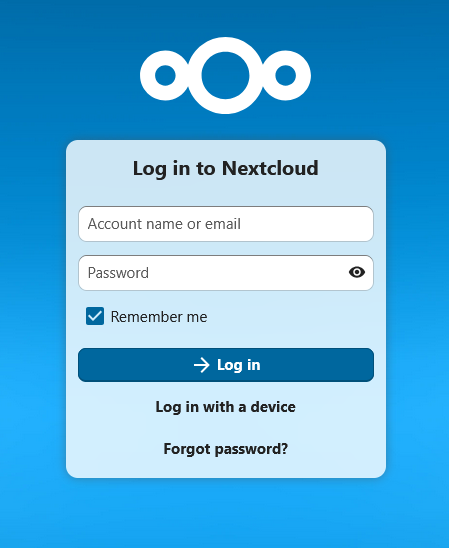
From here I will let you login and setup nextcloud the way you want. But for right now I’m having trouble logging in and will try to find out why my username or password arn’t working.
This is where we need to be relentless and search for the answers that help us through the setup. I can confidently say that no process run perfect and I had to try many work arounds to get to this point, but the best part is you get to see how it worked.