
Setup – Here we come! – BIOS
BIOS
Great, now that we’ve covered so much groundwork in a condensed format, it’s finally time to start installing and updating our software.
The first step is simple: power on the NAS and check the BIOS version. On the CWWK-NAS-ADLN-K motherboard, the BIOS menu is accessed by pressing F2 during startup but if it is brand new it will show be default.
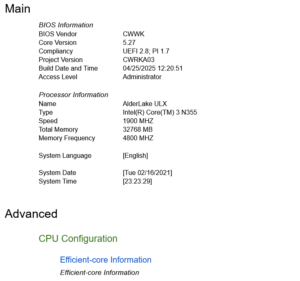
My board originally shipped with the following BIOS details:
- BIOS Vendor: CWWK
- Core Version: 5.27
- Compliancy: UEFI 2.8; PI 1.7
- Project Version: CWRKA03
- Build Date: 2025-04-25 12:20:51
This looked fine at first but after doing some research, I discovered that Project Version CWRKA03 was not the newest version, even though the date appeared recent. Unfortunately, the CWWK website is not the easiest to navigate, and I couldn’t find the BIOS files in the usual support sections.
Thankfully, a community member had shared a link to CWWK’s hidden download area. After digging around in the directory structure, I located the latest BIOS available at the time, listed only as:
CW-NAS-ADLN-K (2025-04-15).iso (Use this link)
Confusingly, despite the earlier date, this ISO actually contained a newer Project Version than the one installed on my board. This mismatch is common with CWWK—the posted date of the file doesn’t always match the internal project version, so always rely on Project Version, not the file timestamp.

Preparing the BIOS ISO on a USB Drive
To flash the BIOS, you need to place the ISO on a bootable USB.
There are many tools for this, but I prefer using YUMI on a large multi-boot USB stick (mine is 64GB). YUMI lets you store and boot multiple ISO files, Linux distros, Proxmox installers, TrueNAS, GParted, diagnostic tools, etc all from one device. I call it my “magic USB” because it handles nearly every installation or recovery task.
Once the ISO was added to YUMI, I inserted the USB stick into the NAS and rebooted. Pressing F2 again brought me back into the BIOS, where I navigated to the Boot Options menu to set the USB drive as the primary boot device.
To adjust the boot order:
- Go to Boot > Boot Option Priorities
- Highlight your USB device
- Move it to the top using + or Shift + (depending on your BIOS and you may also need to Enable Fast Boot)
After saving and rebooting, YUMI loaded correctly. I selected the CWWK BIOS ISO, and the update installed automatically.
New BIOS Version After Flashing
After the update, my BIOS now shows:
- BIOS Vendor: CWWK
- Core Version: 5.27
- Compliancy: UEFI 2.8; PI 1.7
- Project Version: CWRKA02
- Build Date: 2025-04-25 12:20:51
Interestingly, CWRKA02 is considered newer than CWRKA03, despite the version number appearing lower. CWWK’s versioning scheme is not intuitive, and this confusion has been reported widely. If I ever need to revert, I’ll need to hunt down the CWRKA03 image again, so if you have experience with CWWK BIOS versions or archival links, feel free to reach out so I can add a link to download.
Configuring BIOS for the NAS
Now the time to set the setting in the updated BIOS is here. For Proxmox and TrueNAS there are a few things to do and honestly I am always finding new settings so again community member let us know what you use and why.
Enable virtualization and IOMMU:
Intel VT-x / Virtualization Technology > Enabled
Intel VT-d / IOMMU > Enabled
Go to Chipset > System Agent (SA) Configuration.
Highlight VT-d and make sure it is Supported or Enabled.
Disable Secure Boot: TrueNAS/Proxmox are happier without it.
Go to Security > Secure Boot
Highlight Secure Boot and change to Disbaled.
Highlight Secure Boot Mode and change to Disabled or Standard.
Set SATA mode to AHCI (not RAID):
Go to Chipset > Sata Configuration
Highlight SATA Mode Selection and change to AHCI.
Save and Reboot to confirm settings saved.
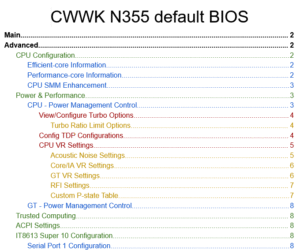
As mentioned in the last post if anyone wants a copy of the original BIOS indexed in a Google Sheet format (about 26 pages) for reference then I might provide it for a small donation when I figure out more with WordPress, but send me a message if interested.
Next step is installing the OS software – Proxmox.