
Finishing up the Hardware choices
Ports
What ports do you actually need on a NAS? At minimum, you will require two USB ports, one for a keyboard/mouse and another for a USB flash drive to install your operating system. Most boards offer a mix of USB 2.0, USB 3.0, and sometimes USB-C. Think about how you intend to use your NAS and what you plan to connect. Speed matters in some scenarios.
For example, I prefer at least one USB 2.0 port for peripherals and one USB 3.0 port to quickly install Proxmox or other OS images.
Network Ports (Ethernet / RJ45)
Your Ethernet ports are extremely important. Common speeds today include 1GbE, 2.5GbE, and 10GbE. Remember:
Your actual network speed will always be limited by the slowest device—such as your modem, router, switch, or client computers.
For example, having a 10GbE port won’t give you 10GbE performance if your router only supports 1GbE.
How many ports do you need?
If you plan on running a firewall (e.g., pfSense or OPNsense), you will need at least two:
- One for WAN
- One for LAN
In my case, I only have a 1GbE router, but I will connect other devices directly to the NAS that can benefit from faster speeds—so I chose a motherboard with 2× 2.5GbE ports.
What about Audio
Audio is generally not required for a NAS, but some people like having a headphone or speaker output for diagnostics or media-center use. Many motherboards include a basic audio jack on the rear I/O or via onboard headers.
I don’t personally need audio, but my board included it anyway.
Display ports
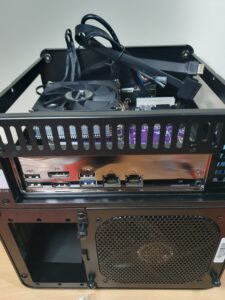
Like audio, display output may not be used regularly, but you absolutely need one during initial setup to access the BIOS and install your operating system.
Typical display outputs include:
- VGA
- HDMI
- DisplayPort (DP)
Any of these will work for the first setup. Alternatively, some users install a PCIe GPU purely for video output.
My board includes both HDMI and DisplayPort, which makes compatibility simple.
Finally the Motherboard
There are many choices here. Your motherboard must align with your overall hardware plan—including:
- CPU (e.g., N100, N305, N355)
- RAM type (e.g., DDR4, DDR5)
- Storage capacity and connectors (SATA, NVMe, HBA support)
- Port selection (USB, LAN, display)
- Form factor / size (ATX, mATX, Mini-ITX, proprietary NAS boards)
Your case size may also dictate the type of motherboard you choose. Some users build full ATX towers, while others prefer compact Mini-ITX or specialised NAS-oriented boards.
Here’s your common sizes:
- ATX (Standard ATX): The most common full-size board, measuring 305x244mm (12×9.6 inches), offering plenty of expansion slots and features for general and gaming PCs.
- Micro-ATX (mATX): A smaller, popular mid-range option, usually 244x244mm (9.6×9.6 inches), with fewer expansion slots than ATX but still great for most users.
- Mini-ITX (ITX): The smallest standard size for desktop PCs, a square board at 170x170mm (6.7×6.7 inches), ideal for very compact or small form factor (SFF) builds, typically with only one PCIe slot.
- Extended ATX (E-ATX): Larger and wider than standard ATX (around 12×10.5 inches or more), used for enthusiast-grade systems with more features, demanding larger cases.
In my case, I wanted a compact NAS, so a Mini-ITX motherboard was the ideal choice. After extensive research into what best suited my build, I compared many popular options. Brands such as Topton and CWWK stood out because they offer boards specifically designed for NAS-focused builds with excellent hardware features.
However, the number of choices can feel overwhelming at times.
I ultimately chose a CWWK motherboard with an Intel N355 CPU, mainly due to the stronger BIOS support and more reliable update availability compared to similar Topton boards.
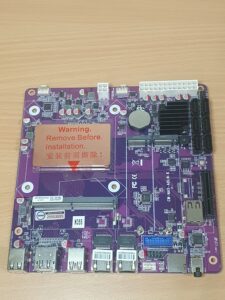
The board I selected was the CWWK-NAS-ADLN-K, also known as the “purple” motherboard. I’ll include the specifications in the next section along with a link for reference.
CWWK 12th-Gen i3-N305 / N100 6-Bay NAS Motherboard — Key Specs
| Category | Details |
|---|---|
| Supported CPUs | Intel Alder Lake-N family: N100, N150, i3-N305, N355 |
| Memory | 1 × SO-DIMM DDR5 slot, up to 32 GB, supports DDR5-4800 |
| Storage | • 6 × SATA 3.0 ports (6 Gb/s) – 1 native + 5 via SATA controller (JMB585) • 2 × M.2 2280 NVMe slots (PCIe 3.0 x1 each) |
| Expansion Slot | 1 × PCIe x1 slot – note: shares bandwidth / signal with 2nd M.2 slot (i.e. M.2 NVMe or PCIe-x1 — choose one) |
| Network | 2 × Intel i226-V 2.5 GbE RJ45 LAN ports — good for multi-LAN or link aggregation. |
| Videos / Display Output | HDMI 2.1 + DisplayPort 1.4b + USB-C (DP Alt Mode) — support for 4K@60 Hz output. Good for local console/GUI use. |
| USB / I/O Ports | Rear: at least 1 × USB 3.0, 2 × USB 2.0, 1 × USB-C (2.0 rate) Internal headers: extra USB 2.0, front-panel, fan headers, TPM header. |
| Form Factor | Mini-ITX — 170 mm × 170 mm ( 6.7″ × 6.7″) |
| Power Input | DC-in (board expects external 12-19 V DC supply) — note: because it’s DC powered, additional attention is needed for powering multiple HDDs. |
| Use Case | Marketed as NAS / Soft-Router / Home-Server board with multiple SATA drives, multi-LAN, DDR5 RAM, ITX form — good for compact but capable storage servers. |
Because the motherboard provides 1 native SATA port and 5 additional SATA ports via a shared controller, all of those ports operate on the same PCIe lane. This means the connected drives share the available bandwidth, which can limit performance—especially under heavy load.
This is the main reason I chose to use an HBA (IT-mode) controller. An HBA gives each hard drive its own dedicated lane, rather than forcing all drives to share one. This greatly improves stability and throughput, particularly in NAS environments.
That said, the onboard SATA ports are still perfectly fine if you don’t need peak performance or full bandwidth under load.
Lastly the Power Supply, Case and Cooling
The final key components to consider are the power supply, the case, and the cooling system. These three elements determine not only how reliably your NAS will run, but also how quiet, cool, and long-lasting it will be.
Power Supply (PSU)
The amount of power your NAS requires depends on the hardware you choose, particularly the number of hard drives, the type of CPU, and any additional expansion cards such as an HBA. You must also factor in how hard the system will be driven, especially if you intend to run virtual machines or services that keep the CPU active.
One of the first decisions is choosing between an internal PSU (SFX or ATX) or an external power brick. Each has its pros and cons:
- Internal PSU:
- Better long-term reliability
- Higher sustained wattage
- More suitable for systems with multiple HDDs
- Slightly more noise and heat
- External power brick:
- Compact and silent
- Limited wattage
- Not ideal for many spinning drives or high-load systems
If you plan on running several HDDs or just want headroom for future upgrades then choose a PSU that can deliver strong sustained output, not just a high peak number. Many cheaper power supplies quote impressive peak wattage, but their continuous rating is what matters for NAS workloads. Picking something that’s “just enough” often leads to random shutdowns, instability, or premature PSU failure.
For my build I selected the SilverStone ST30SF, a 300W SFX unit that is extremely popular in DIY NAS communities (and getting harder to source now). It fits perfectly in my chosen case and meets the motherboard’s minimum requirement of a 300W PSU.
A quick tip from experience:
When I first assembled the system, it would power on for a second, then immediately shut off. I thought I had damaged something. It turned out I had simply missed plugging in one of the power connectors. Once connected properly, everything worked perfectly. Always double-check your power cables before assuming the worst.
Case
Your case determines how many drives you can use, how well your system cools, and how easy it is to build and maintain the NAS. Different cases support different layouts, drive cages, and port arrangements, so it’s important to pick one that matches your hardware choices.
Popular brands for DIY NAS builds include SilverStone and Jonsbo, but there are many other excellent options.
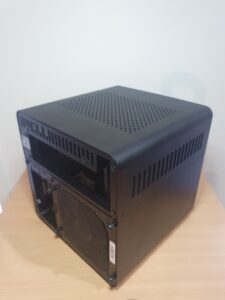
In my case, I wanted a compact system with 4–5 HDD bays, room for SSDs, and good airflow. After comparing many options I chose the Jonsbo N2:
- Supports up to 5× 3.5″ HDDs
- Supports 2× 2.5″ SSDs
- Quiet and compact
- Clean layout designed for NAS airflow
- Front/back panels with appropriate port access
Another great option is the Jonsbo N3, which is larger, slightly louder due to bigger fans, but offers better cooling and more space. If you want maximum airflow and don’t mind a slightly larger footprint, the N3 is worth considering.
Cooling
Cooling is critical in any NAS build especially with multiple mechanical hard drives. Poor airflow will shorten the lifespan of your drives, CPU, and VRMs, and can lead to data loss or unexpected shutdowns.
Key cooling considerations:
- Ensure unobstructed airflow across all HDDs.
- Avoid cases with poor intake/exhaust paths.
- Use high-quality, quiet fans (Noctua, BeQuiet!, Arctic).
- Keep cable management tidy to avoid blocking air.
- Monitor drive temperatures under load; aim for 30–45°C for HDDs.
- If adding more drives later, consider upgrading fans.
If your build doesn’t have adequate airflow, you must either add more cooling or reconsider the case or PSU layout. Heat is the number-one killer of NAS hardware—and with it, your data.
Now with everything selected comes time to make the build.
Lots of pictures in the next posts.