
Network Setup and Installing Proxmox
Disclaimer for the entirety of the posts, this is how I am setting up my NAS, and your configuration may not be exactly the same, so expect some differences in software and settings. This community is very helpful, and you can also check out r/DIYNAS on Reddit and post questions there for additional assistance, as many members are experienced and willing to share advice.
Before installing and configuring any NAS software, it’s essential to understand how the NAS connects to your network. In my setup, I’m aiming for the best speed, reliability, and simplicity, so the first step is designing the network layout properly.
1. Understanding the Main Router
Everything in the home connects to my main modem/router, which broadcasts the Wi-Fi network (I’ll call this the Main Router).
Like many standard home networks, its LAN IP is:
192.168.0.1Typing this into a web browser brings up the router’s configuration page.
This is the central point of the network.
Connecting the NAS to the Main Router
My NAS will connect directly to the Main Router using network cables.
To do this efficiently, I need at least two network ports on the NAS:
- WAN port – receives the internet and main LAN from the Main Router
- LAN port – outputs the internal network from the firewall VM running on the NAS
This dual port setup is important for the following reasons:
Purpose 1: Direct Access to the Home Network
By plugging the NAS directly into the Main Router:
- It becomes part of the same network as everything else
- It receives an IP address in the same range (for example,
192.168.0.x) - I can access the NAS from any device in my home without extra routing steps
This keeps things simple and avoids unnecessary network layers.
Purpose 2: Avoiding Double NAT and Network Bottlenecks
If I connected the NAS to another router or nested network before reaching the Main Router, I would introduce:
- Double NAT issues
- Slower traffic flow
- More complex firewall routing
- Unnecessary hops for gaming, streaming, and file transfers
Traffic would constantly have to move:
Main Router -> Secondary Router -> NAS -> Secondary Router -> Main RouterThis creates bottlenecks, especially when running a firewall on the NAS (e.g., pfSense or OPNsense), because all your home’s traffic would unnecessarily “bounce” between networks.
Connecting the NAS directly to the Main Router ensures:
- Clean routing
- Full bandwidth
- No double NAT
- The firewall VM can properly manage traffic
- No performance penalties for streaming, gaming, or large file transfers
The End Result
With the NAS connected to the Main Router correctly:
- The firewall VM (pfSense/OPNsense) will perform efficiently
- Your LAN stays simple and stable
- You can easily enable secure remote access to your NAS from outside your home
- Network performance is maximised
Optional Note
If anything in this explanation isn’t clear, feel free to ask and I can also create a diagram that visually compares a correct single-layer setup and a double NAT setup that causes bottlenecks
Just let me know and I’ll draw it.
Installing Proxmox
Before we can install and configure any NAS software, we first need a solid hypervisor foundation. In this build, that foundation is Proxmox VE.
Step 1: Download Proxmox VE
First, download the Proxmox VE ISO from the official Proxmox website.
At the time of writing, Proxmox VE 8.x is the recommended version.
As a general rule, I suggest waiting 3 to 6 months after a major new release before upgrading. This gives time for driver issues, hardware quirks, and early bugs to be resolved. For that reason, even when Proxmox VE 9 becomes available, I’ll be sticking with version 8 initially.
Step 2: Create a Bootable USB
You now need to write the Proxmox ISO to a bootable USB drive.
Earlier, I mentioned that I use YUMI, which allows multiple ISOs on one USB. You can also use other popular tools such as Rufus or BalenaEtcher. All of these work well.
If you are unsure how to do this, search for a tutorial specific to your chosen tool.
IMPORTANT WARNING
Creating a bootable USB WILL ERASE ALL DATA on that USB drive.
Back up anything important before proceeding.
Step 3: Prepare the NAS for Installation
At this point, you should already have:
- BIOS updated and configured
- Proxmox USB ready
- Keyboard and mouse connected
- Monitor connected via HDMI or DisplayPort
Insert the bootable USB into a rear USB port, preferably a blue USB 3.x port.
Optionally, you can also connect the network cable now.
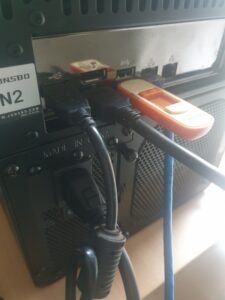
Power on the NAS and immediately begin pressing F2 to enter the BIOS.
If the system does not boot from the USB automatically:
- Enter BIOS
- Navigate to Boot Options
- Set the USB device as Boot Option #1
- Save and exit
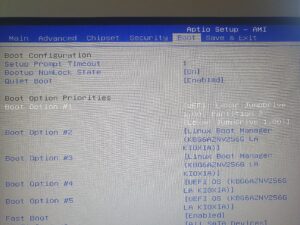
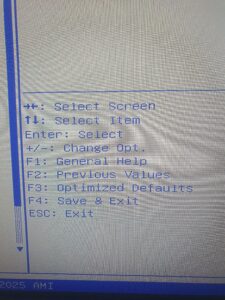
Hint:
Use the arrow keys to highlight the USB device.
Use Shift + or + to move it up in the boot order.
Press F4 to save and exit, then confirm with Enter.
Step 4: Boot the Proxmox Installer
After rebooting, the system should boot into the Proxmox installer.
If you are using YUMI with multiple ISOs, select:
YUMI exFAT > Unlisted ISOs > proxmox-ve_8.x-x.iso
Boot in normal mode
Once loaded, you will see the Proxmox installer menu.
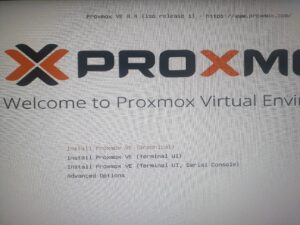
Select:
Install Proxmox VE (Graphical)
Press Enter
The installer will load, showing some startup messages. Just wait.
Step 5: License Agreement
You will be presented with the End User License Agreement (EULA).
Read it if you wish, then click I Agree in the bottom right corner.
Step 6: Select Installation Target
This is a very important step.
On the main installer screen, look for Target Harddisk.
Use the dropdown to select where Proxmox will be installed.
In my case, I want to install Proxmox on two NVMe M.2 SSDs in a mirror so that if one drive fails, the system continues running.
Click the Options button next to the storage dropdown.
Configure ZFS RAID1
A smaller window will open.
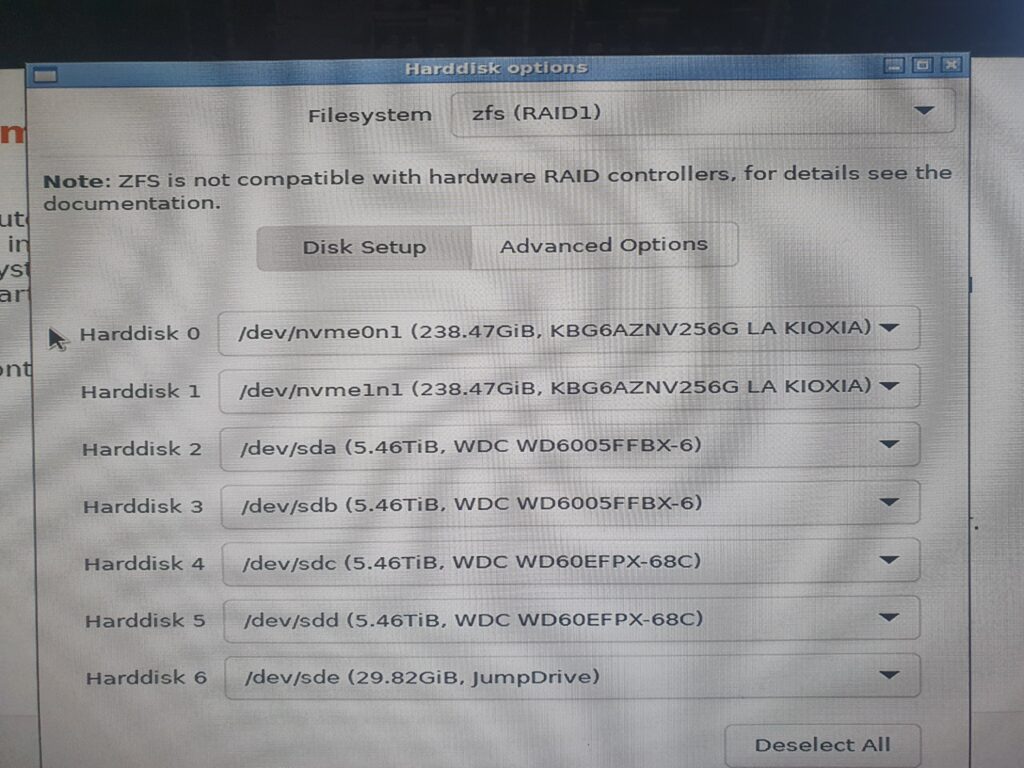
- Under Filesystem, select ZFS (RAID1)
- Below, you will see a list of disks (Harddisk 0, Harddisk 1, etc.)
First, click Deselect All so no disks are selected.
Now assign only the two NVMe drives:
- Harddisk 0, select
/dev/nvme0n1 - Harddisk 1, select
/dev/nvme1n1
Leave all other disks set to do not use.
Click OK.
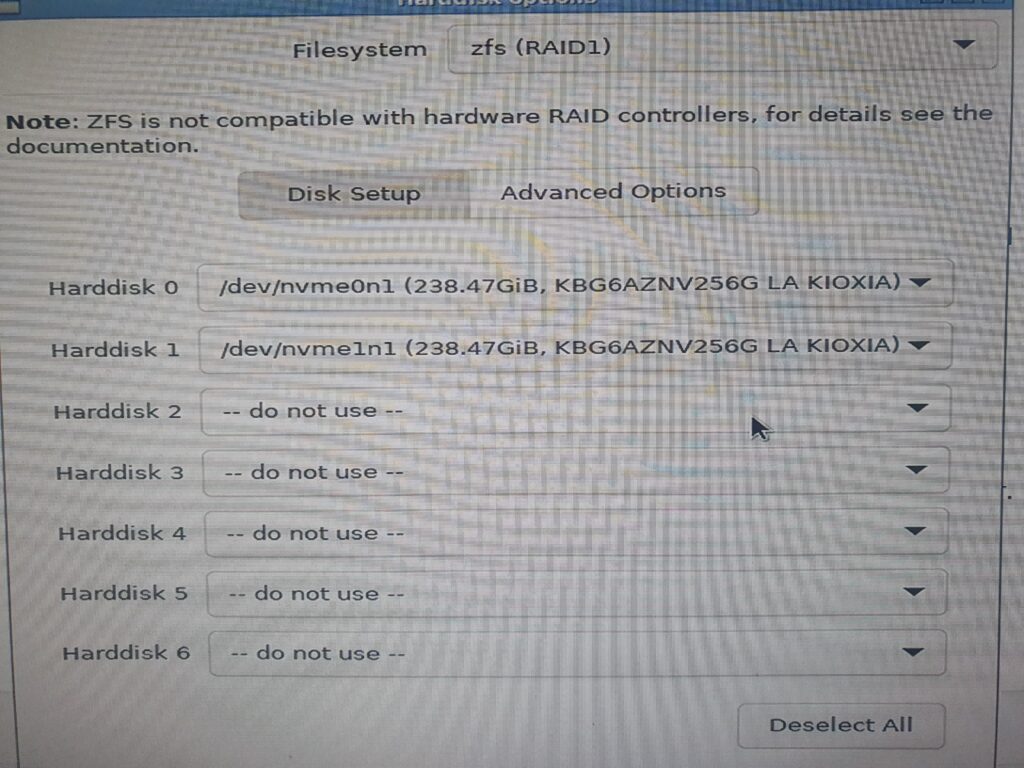
Back on the main screen, you should now see:
Target: ZFS (RAID1)
Click Next.
Step 7: Location and Time Zone
Select:
- Your Country
- Your Time Zone
- Your Keyboard Layout
I’m in Australia and left the keyboard layout as US English.
Click Next.
Step 8: Administrator Password and Email
This screen sets your root administrator password.
- Enter a strong password
- Confirm it
Make sure you remember this password. You will need it to log in.
The email address is optional. Proxmox can use it for notifications if configured later.
Click Next.
Step 9: Management Network Configuration
This step defines how Proxmox connects to your network.
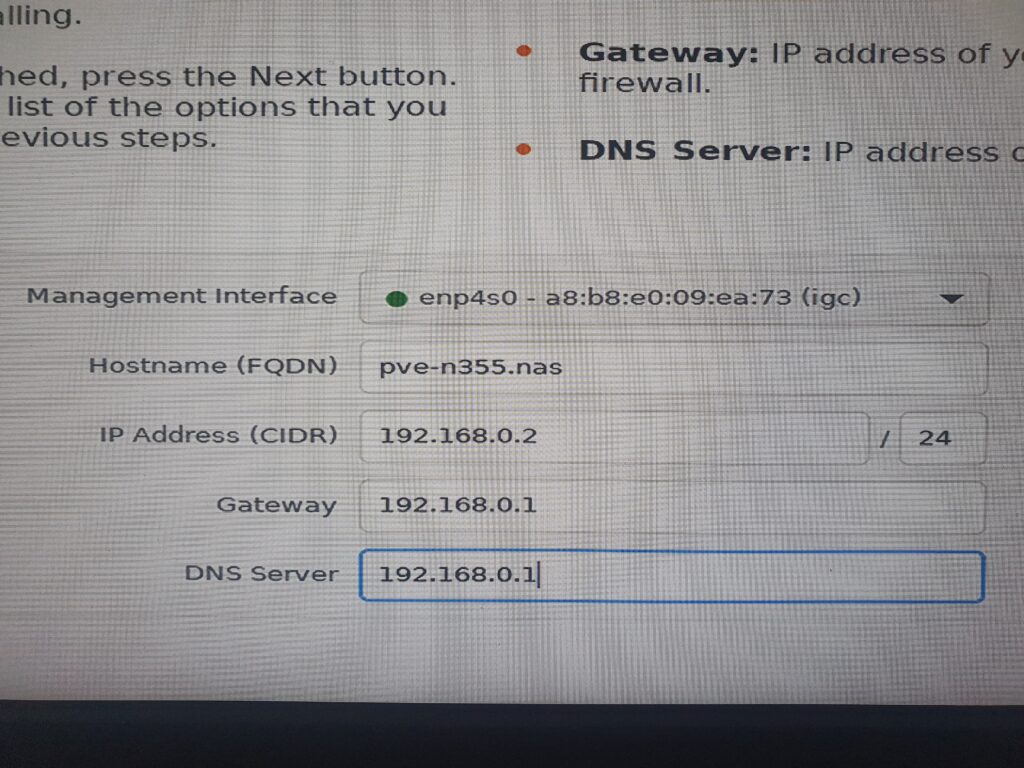
- Management Interface: select your primary network port, for example
enp4s0 - Hostname (FQDN):
Example:pve-n355.naspve-n355is the server namenasis the local domain
IP Address Configuration
Because my router is 192.168.0.1, my network uses the 192.168.0.x range.
I assigned:
- IP Address:
192.168.0.2/24 - Gateway:
192.168.0.1 - DNS Server:
192.168.0.1
This creates a static IP, which is highly recommended for servers.
Static vs Dynamic IPs Explained
- Dynamic IPs are automatically assigned by the router
- Static IPs are manually set and never change
To avoid conflicts, log into your router and adjust the DHCP range.
Example:
- DHCP Start:
192.168.0.50 - DHCP End:
192.168.0.250
This reserves 192.168.0.2 to 192.168.0.49 for static devices like servers and NAS systems.
Click Next.
Step 10: Summary and Installation
You will now see a Summary screen showing all chosen settings.
If you need to change anything, click Previous.
If everything looks correct:
- Ensure Automatically reboot after successful installation is checked
- Click Install
Proxmox will now install. You will see a progress bar at the bottom.
Step 11: First Boot and Web Access
Once installation finishes, the NAS will reboot.
You will see a simple text screen stating:
Welcome to the Proxmox Virtual Environment
Please use your web browser to configure this server
Below that will be the web address.
From another computer on the same network, open a browser and go to:
https://192.168.0.2:8006You will see the Proxmox login page.
Log in with:
- Username: root
- Password: the password you created earlier
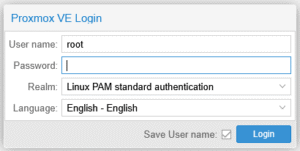
At this point, everything is managed through the web interface.
You no longer need the monitor, keyboard, mouse, or USB installer connected to the NAS.
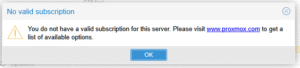
When you see the No Valid Subscription box just press OK, we are not subscribed ad paying for an enterprise version.
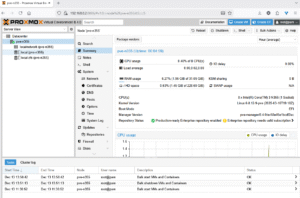
Lastly you can see how Proxmox looks, you can see the server pve-n355 on the left view and to the right is the Summary menu showing the Initial view.
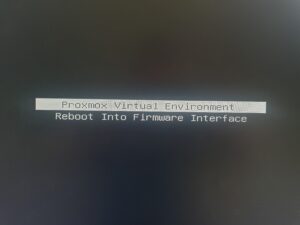
Hint: One last thing here which may help in the future. I you ever need to boot to bios just boot with the monitor connected to the NAS, you will get two options when Proxmox is booting up, either boot to Proxmox (default if untouched) or boot the the BIOS if manually selected (Reboot Into Firmware Interface). Easy!
Next Steps
With Proxmox installed, we can now move on to Storage configuration, Creating virtual machines, Installing TrueNAS, and Setting up containers and services
That’s where the real fun begins.
Next post will be about configuring Proxmox.