
Installing TrueNAS Scale Part 1
First we need to download Truenas Scale so we can upload it to the NAS and install it as a VM (Virtual Machine).
1, Download Truenas Scale Community Edition
Go to the TrueNAS community and click on the Downloads tab at the top and select TrueNAS Scale.
You should now be on the Download TrueNAS Community Edition page where you can signup.
Below the signup area you will see No thanks I have already signed up. Click on that link.
You are now on the download page. At the time of writing this blog the version has changed a few so I will get the latest stable version which is TrueNAS 25.10.1.
Click on the Download STABLE button and the download will begin on your web browser.
Note: Links added here may change with versions and this is why I’m giving navigation instructions. But if the Download STABLE link works then great. ( https://download.sys.truenas.net/TrueNAS-SCALE-Goldeye/25.10.1/TrueNAS-SCALE-25.10.1.iso)
Before the TrueNAS Scale ISO file is uploaded to Proxmox, make sure you move or copy it to a location on you computer that is accessing Proxmox on the web browser.
2, Uploading TrueNAS Scale to Proxmox
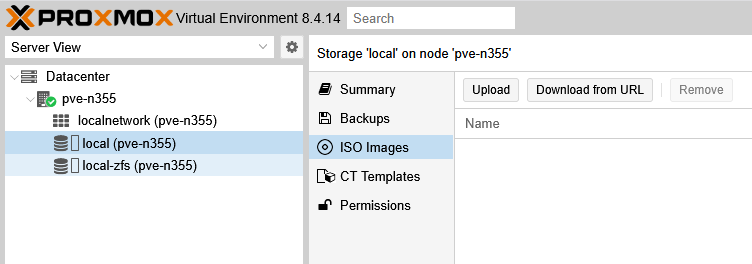
In Proxmox expand the left hand side and navigate here:
Datacenter > pve-n355 > local(pve-n355) > ISO Images
Once on the ISO Images window to the right click on Upload.
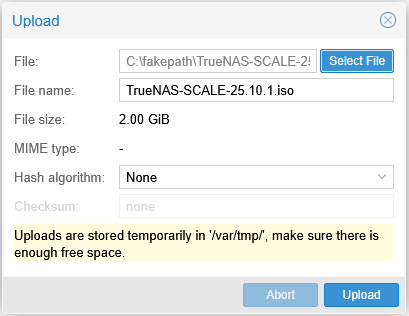
Now a smaller window opens. Click on Select File and navigate to where you saved the TrueNAS Scale download.
Open or attach the file and it will be ready to be uploaded. Press the Upload button to start uploading.
Wait until it has finished.
Once complete you will have a window like this that states Task OK at the bottom.
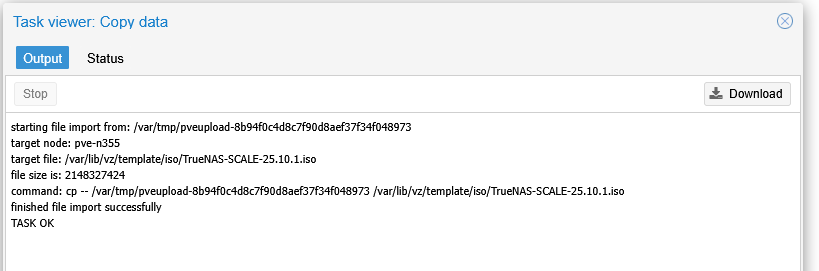
The window can now be close vie the X at the top right.
You will now see the file sitting in the ISO Images storage location.
3, Create the TrueNAS VM
Towards the top right of Proxmox is the Create VM button, Click on this.
Note: You can always change the settings after installation to suit your needs.

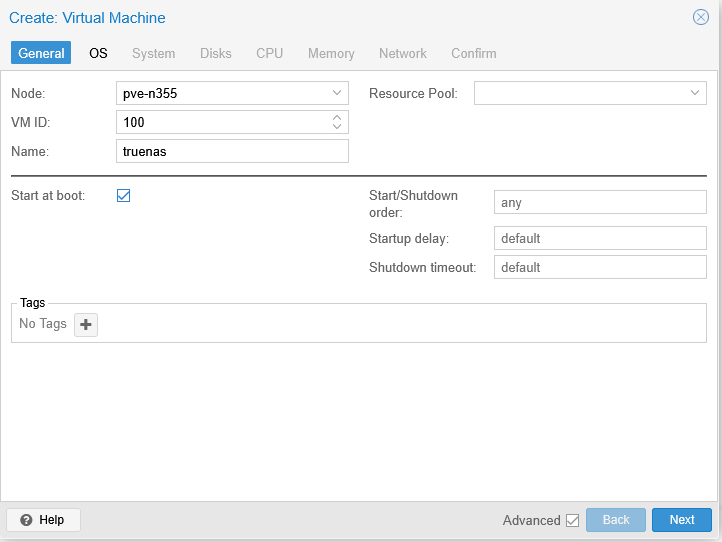
The first tab in the setup window in General.
- VM ID (Virtual Maching ID) needs a number, Im keeping it at 100. (Each VM created will have it’s own number)
- Name. Ill just call it truenas.
- Tick the Advanced button at the bottom.
- Untick Start at Boot. (I took the screenshot before I realised this this was not unticked yet)
- Click Next for the OS section.
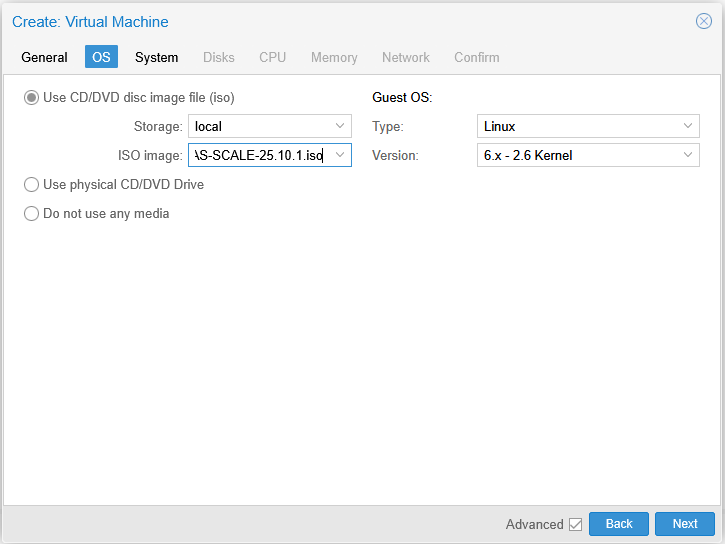
In the OS window click on the ISO Image and select the TrueNAS file you uploaded.
Leave the other fields as you see here and click Next for the System window.
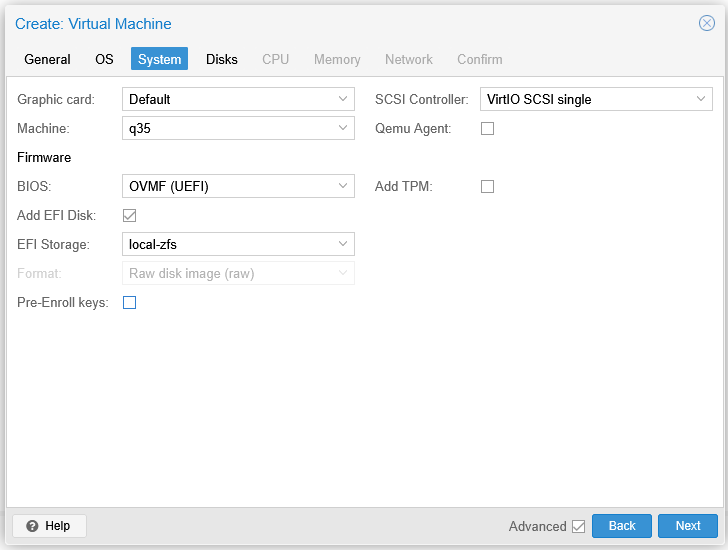
In the System window set it up exactly the same as shown here.
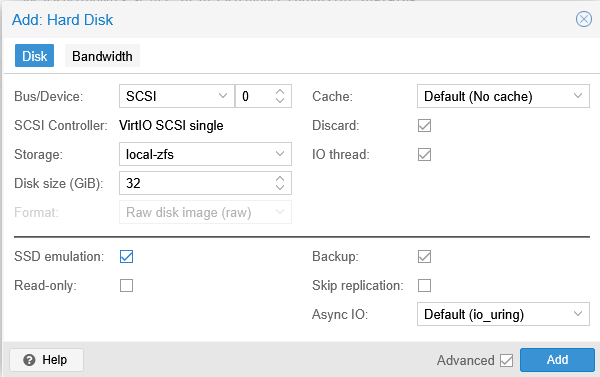
Create the Disks as shown below and make sure Bus/Device SCSI, Storage local-zfs, Disk size 32, SSD emulation ticked, Cache Default, Discard ticked is configured.
Now the Disks window is up.
Make sure all fields are the same and boxes are either ticked or not ticked, then press Next.
Then click Next.
Now configure the CPU screen as shown making sure all fields are the same.
Sockets, Cores and Type.
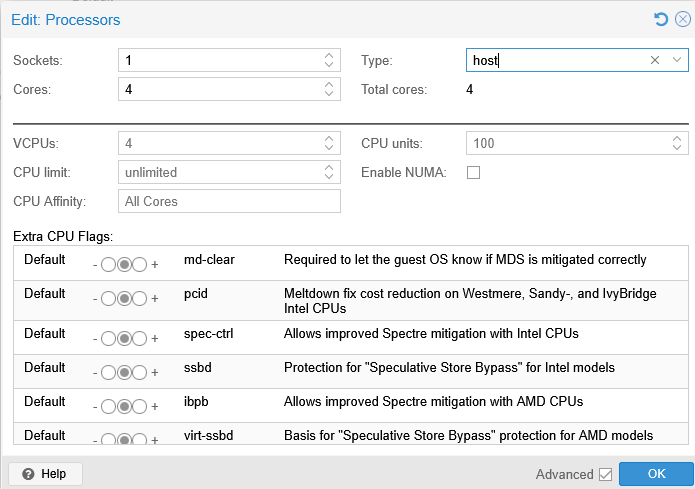
Don’t worry about all the Advanced things down the bottom.
Click Next to move to the Memory window.
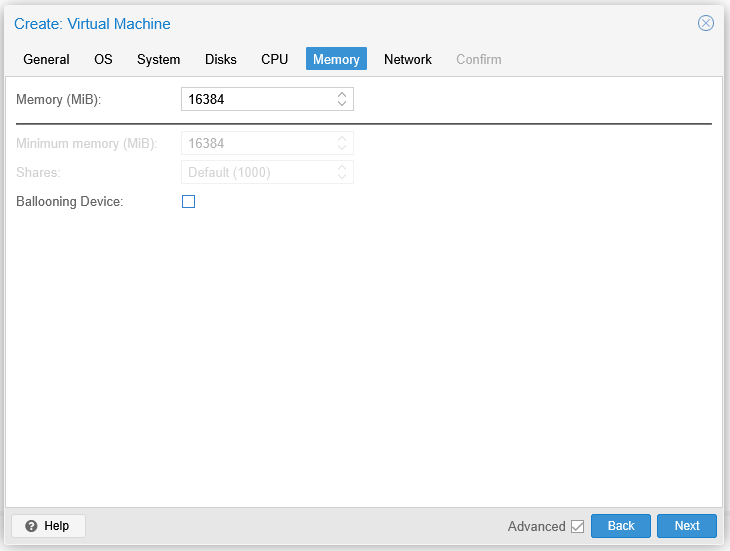
In the Memory (MiB) enter 16384 and untick the Ballooning Device.
Click Next.
Check the Network screen and again make sure Bridge is vmbr0, and the Model is VirtIO, and the Firewall in unticked.
Click Next.
You will be in the Confirm screen. You can double check the setting before you click Finish.
When ready click Finish and TrueNAS scale will install.
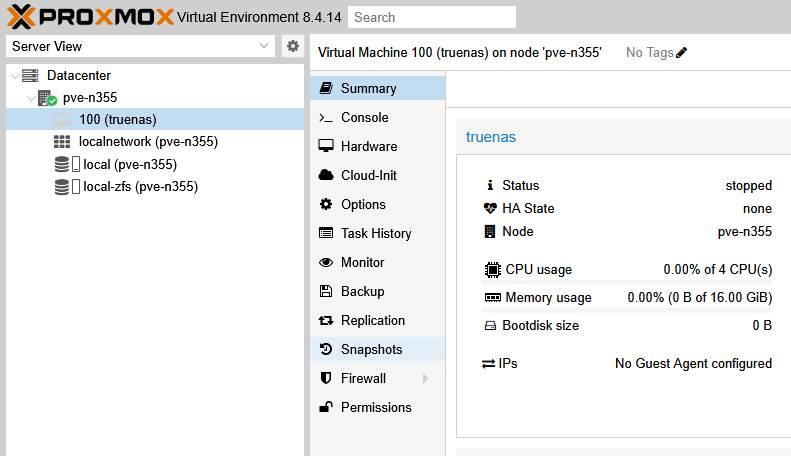
After installation is complete, Proxmox will look like this.
4, Attach the LSI HBA to the TrueNAS Scale VM
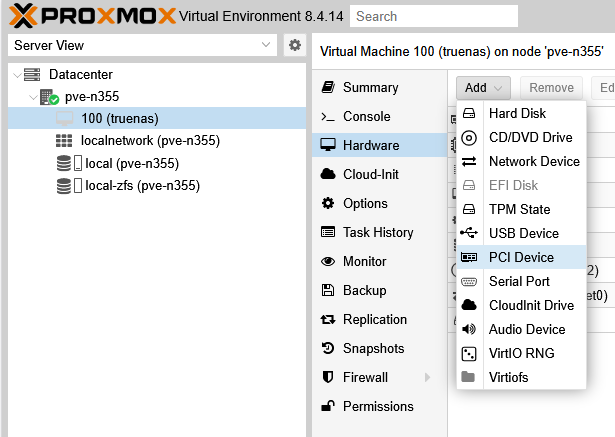
Select the truenas VM you just created and click on the Hardware option in the menu to the right.
Click on the Add button and then click on the PCI Device.
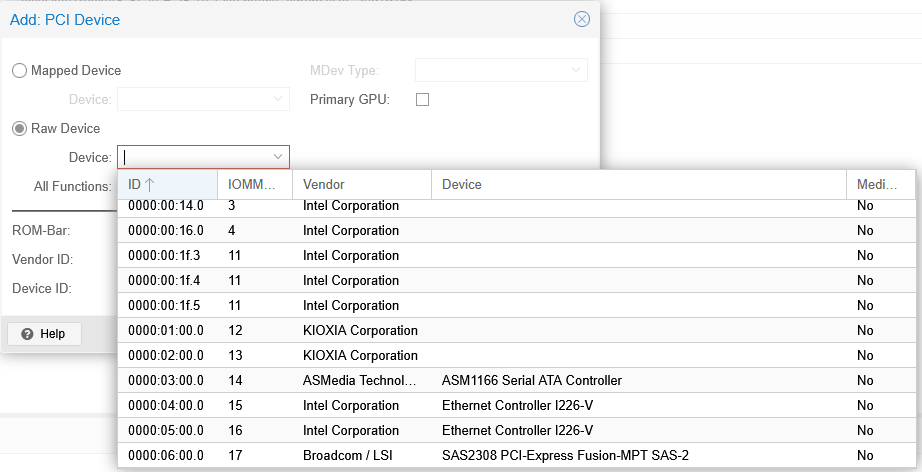
The Add: PVI Device window opens and here you select Raw Device.
In the list scroll down to the 0000:06:00.0 17 Broadcom/LSI SAS2308 PCI-Express…… and select it.
Tick PCI-Express.
Untick All Functions, ROM-Bar and Primary GPU.
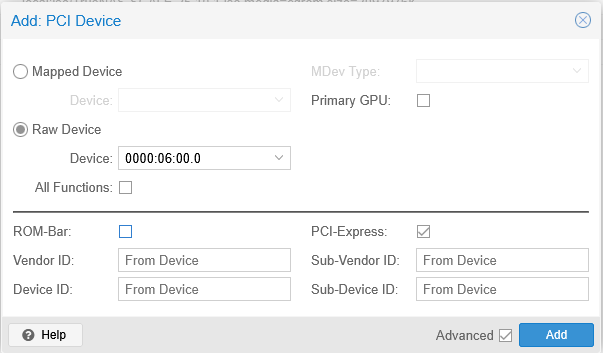
Click Add to attach it.
Next we are going to run the installation and continue the setup.
This will be in Installing TrueNAS Scale Part 2.