
Installing Jellyfin
Now that the datasets are setup in the RAIDZ2 comes times to install any apps that want to be used. Im my case Nextcloud and Jellyfin just for this blog.
Open Apps
In TrueNAS Scale the Apps button is on the left menu, click it to enter.
Now on the top right there is a Configuration menu. Open it and select Choose Pool.
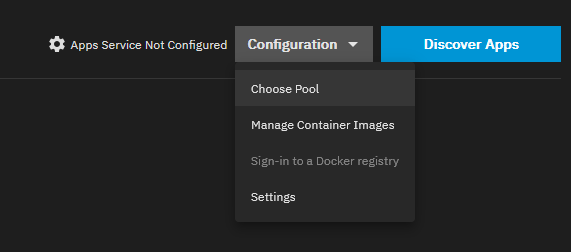
Select the pool that was created, in this case “tank“.
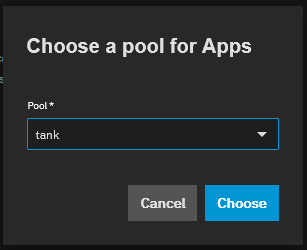
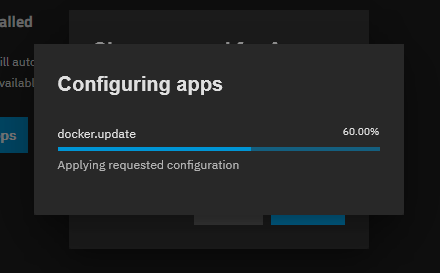
Click on Choose and it will start configuring the Apps.
Now click on the Discover Apps at the top right.
In the search bar type “jellyfin” and the apps with that name will show.
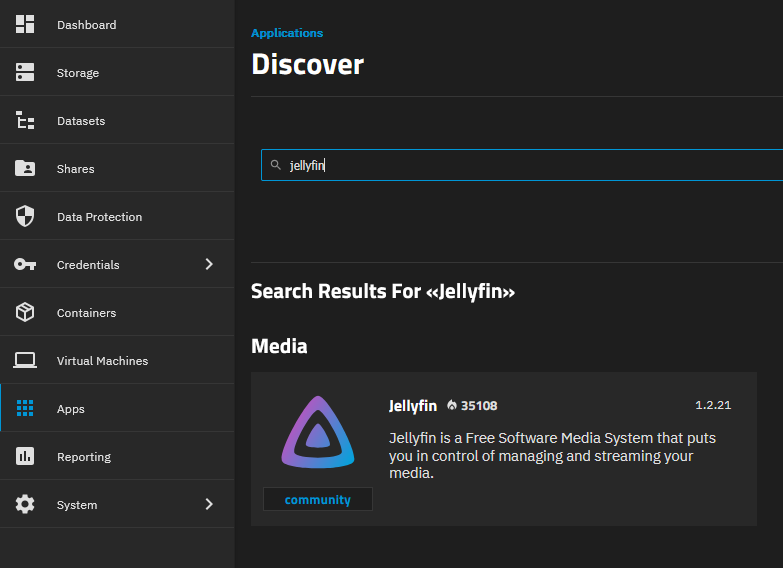
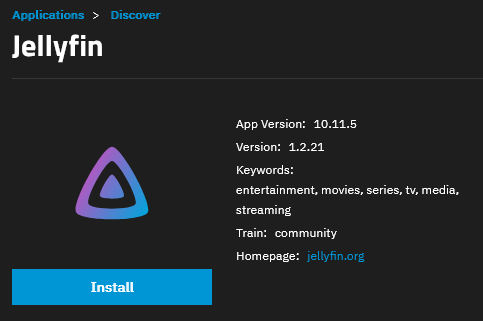
Click on the Jellyfin 1.2.21 and then you will have an Install button, click that.
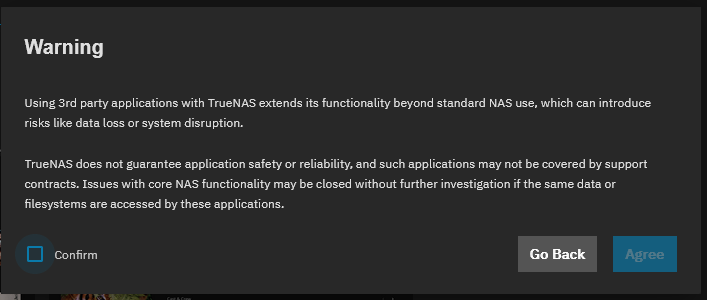
You will get a warning popup, click on Confirm and then Agree.
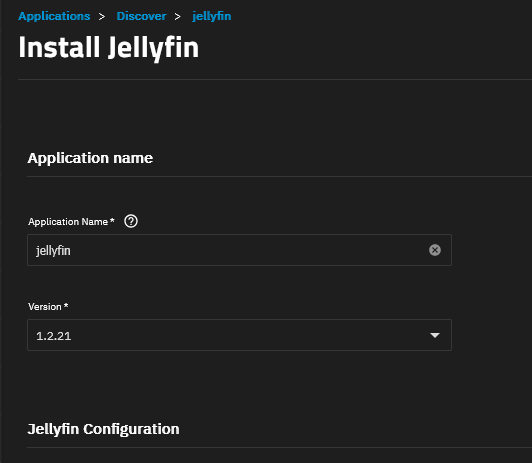
Now you will be on a Install Jellyfin page.
Timezone: set your timezone.
User ID and Group ID: 568
Port Bind Mode: Publish port on the host for external access
Port Number: 8096
HTTPS Port and Discovery Port: None
Host Network: Unticked
Jellyfin Config Storage – Type: Host Path (Path that already exists on the system)
Jellyfin Config Storage – Host Path: /mnt/tank/apps/jellyfin/config
Jellyfin Cache Storage – Type: Host Path (Path that already exists on the system)
Jellyfin Cache Storage – Host Path: /mnt/tank/apps/jellyfin/cache
Jellyfin Transcode Storage – Type: Host Path (Path that already exists on the system)
Jellyfin Transcode Storage – Host Path: /mnt/tank/apps/jellyfin/transcode
In Additional Storage click Add.
Set – Publish port on the host for external access / Host Path (Path that already exists on the system)
Mount Path: /media/movies
Host Path: /mnt/tank/media/movies
Click Add again and enter another one below with.
Set – Publish port on the host for external access / Host Path (Path that already exists on the system)
Mount Path: /media/tv
Host Path: /mnt/tank/media/tv
Resources Configuration – CPUs: 4
Resources Configuration – Memory (in MB): 4096
Click on Install and start the Jellyfin installation.
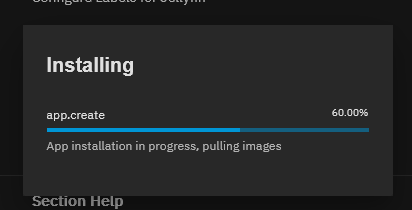
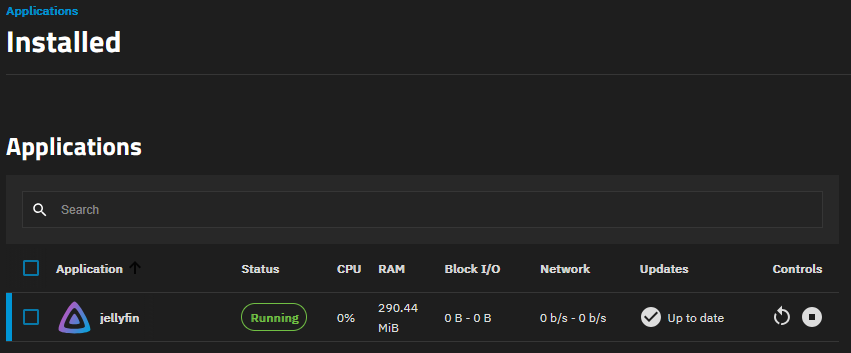
Once it completed you will end up on the Applications window and it should look like this.
Now to access Jellyfin on the web browser.
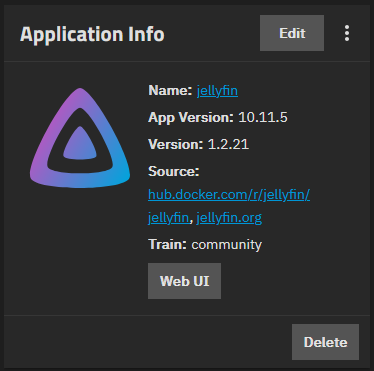
Towards the right you can see the Application Info widget.
Click on the Web UI button.
Now you are taken to the web browser at the Jellyfin welcome screen.
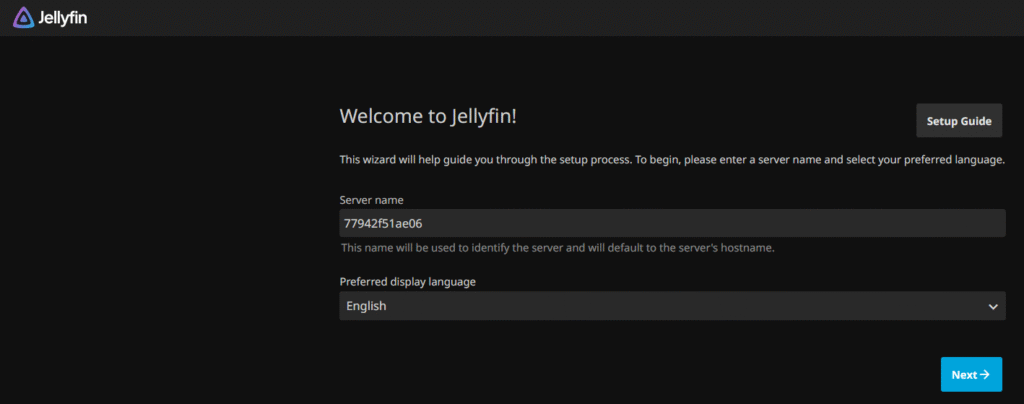
I wont take you through setting up Jellyfin as everyone is going to do it differently but there are some great tutorials out there and helpful community members. One new place worth trying is r/DIYNAS a Reddit community. Ask how to setup Jellyfin on Truenas etc..
Next up will be installing Nextcloud.