
Setting up Permissions and Shares
Once you have Jellyfin set up the way you want and it is running correctly, the next question is usually how to add media to your libraries.
There are several ways to do this, such as using SMB network shares, direct file copies, or other transfer methods. Each approach works slightly differently and has its own advantages and drawbacks depending on your setup.
In my case, I will be installing Nextcloud and using it as the primary method for adding media files. This allows me to upload and manage my media through a web interface, rather than copying files manually over the network. An added benefit is that Nextcloud will also provide access to my other file storage, not just media for Jellyfin.
Using Nextcloud gives me a single, central place to manage files, while Jellyfin simply reads from the same storage location. This keeps everything organised and makes it much easier to add, update, or remove media in the future.
Beginner warnings and common mistakes to avoid
Permissions issues
One of the most common problems beginners face is file permission errors. Jellyfin and Nextcloud must both have read access to the media folders. If Jellyfin cannot see files, it is usually a permissions issue rather than a Jellyfin problem.
Do not store media inside the Nextcloud application folder
Always store your media in a dedicated storage location, not inside the Nextcloud program directory. This prevents data loss during upgrades or reinstallation.
Avoid duplicate uploads
If you also use SMB or other file transfer methods, be careful not to upload the same files multiple times into different folders. Jellyfin will treat them as separate media items.
Large uploads take time
Uploading large media files through a web browser can take a long time, especially over WiFi or remote connections. Be patient and avoid closing the browser mid upload.
Do not expose services without security
If you plan to access Nextcloud or Jellyfin from outside your home, make sure you use HTTPS, strong passwords, and preferably a VPN or reverse proxy. Never expose services directly to the internet without protection.
1, Verify and fix permissions in TrueNAS Scale
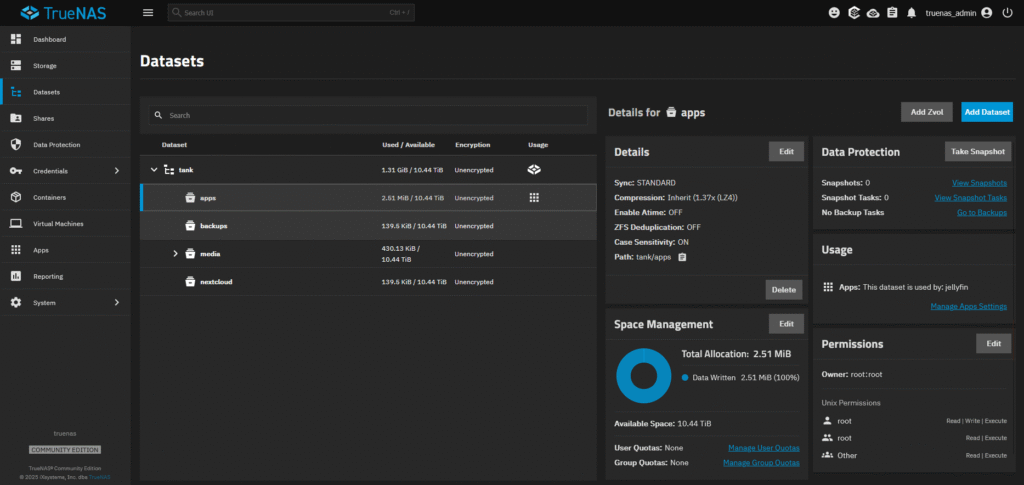
Navigate to Datasets > tank > apps
Towards the right is a widget saying Permissions, click Edit.
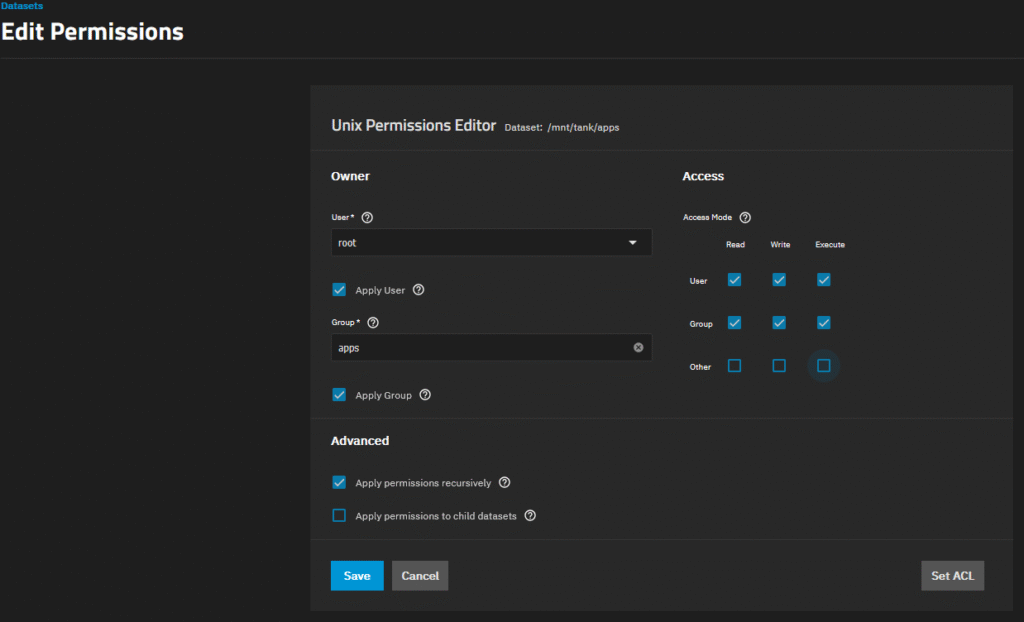
Set permissions exactly as shown in the image below and press Save.
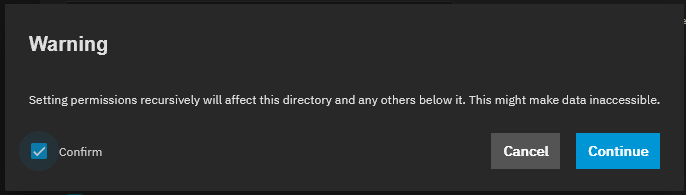
You may have got a popup box after clicking the Apply permissions recursively.
Tick Confirm and Continue.
2, Create an SMB Share
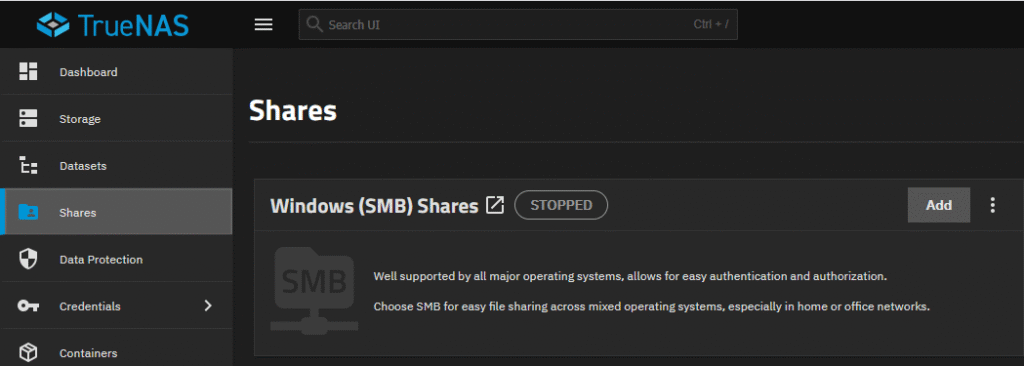
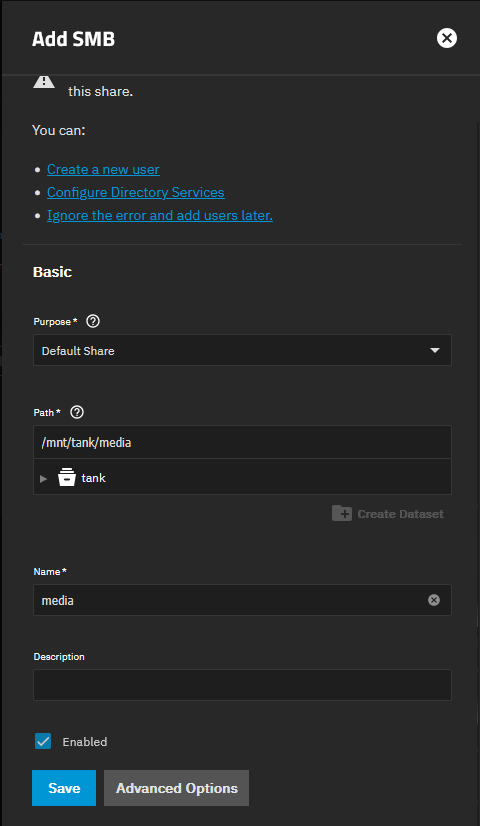
Navigate to Shares > Windows (SMB) Shares > Add.
Configure the share on the right hand side the same as the image below and click Advanced Options.
In Advanced Options make sure the settings are the same as shown.
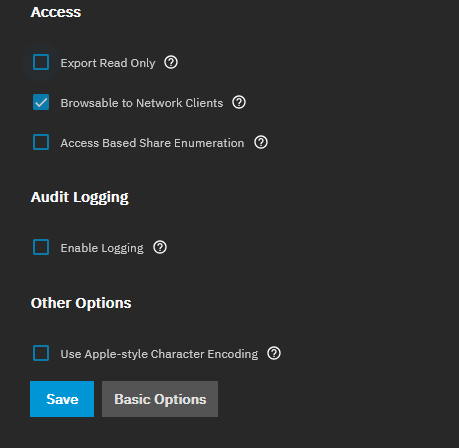
Click Save.
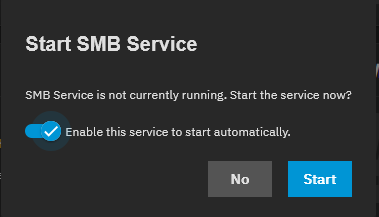
You will a Start SMB Service box.
Make sure it is Enabled and click Start.
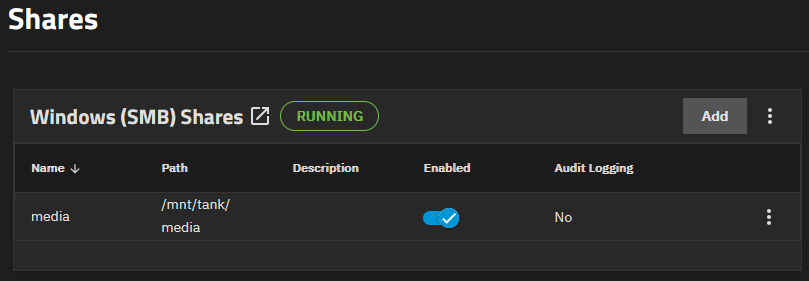
You should now see the SMB share running.
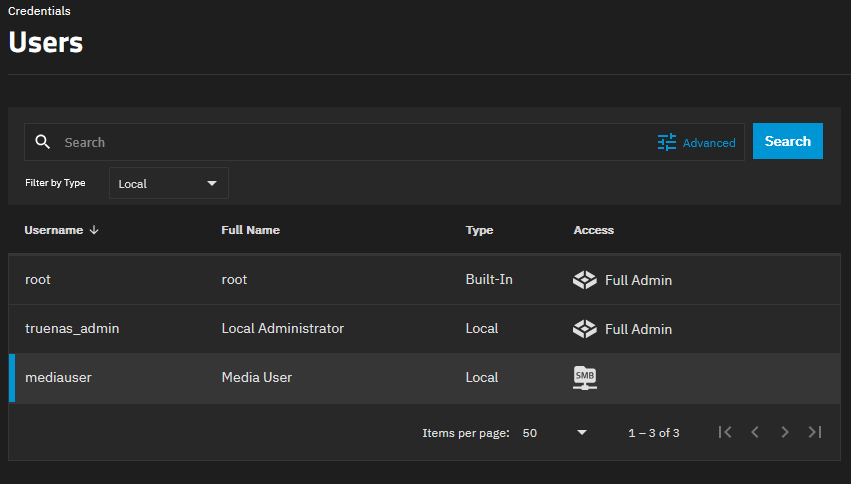
3, Create a user for SMB access
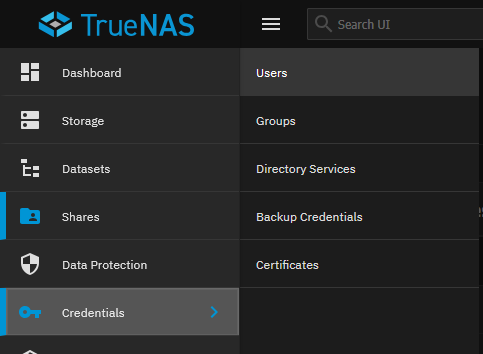
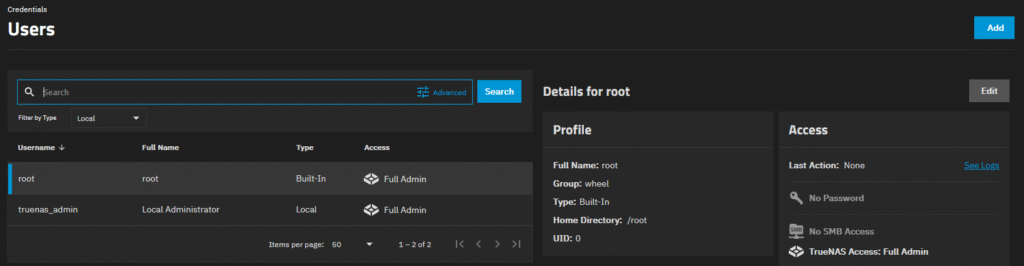
Navigate to Credentials > Users > Add.
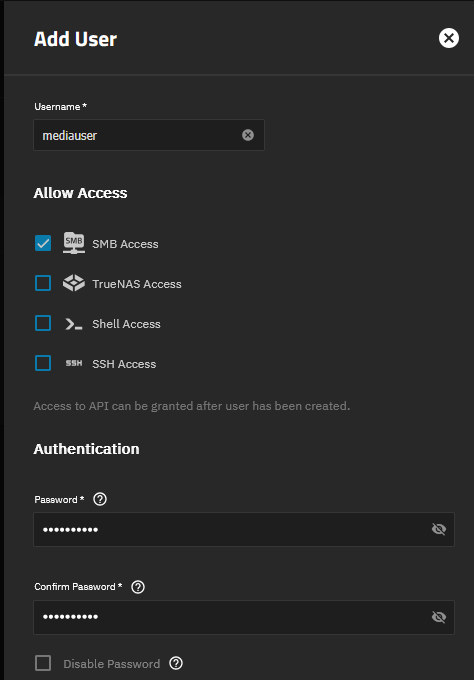
Set the following fields the same as shown below.
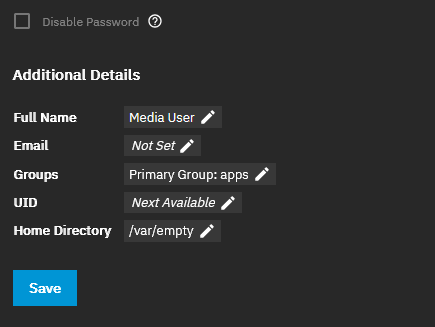
Click Save.
Now you should be able to see the new SMB share.
Login as new user to see the folders
This is all setup ready to go.
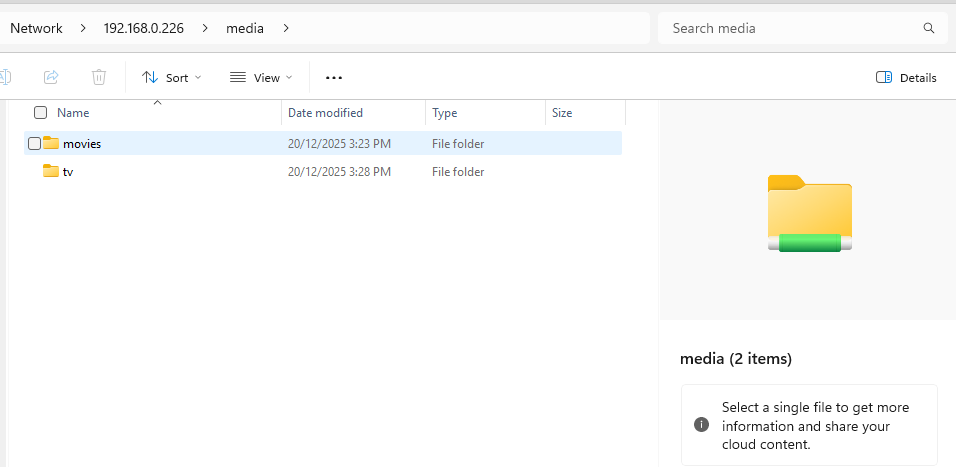
Open your file explorer (not web browser) and type in the address using \\truenas ip\media.
Mine will be \\192.168.0.226\media
Note: Use the correct back slashes \\ for a file path. // is used for web addresses.
Login with the username and password you just created.
My username was mediauser.
One entered and correct you will have folder access.
Note: I missed something somewhere so had to fix permissions so file transfer was possible in file explorer, even though I am intending on using Nextcloud I still need the SMB share to work correctly.
I navigated to System > Shell and entered these commands.
sudo chown -R root:apps /mnt/tank/mediaEntered my root Password.
sudo chmod -R 775 /mnt/tank/mediaThen I had to disconnect the old SMB session.
On your computer open Command Prompt as Administrator.
Press Windows Key + S then type cmd
Right click Command Prompt then select Run as administrator.
Enter this command and press Enter.
net use * /deleteIf there were any session you have the ability to close them.
I can now freely transfer files from my pc to the media folder. SUCCESS!
Next the continuation to Install Nextcloud.